
How to Protect Your Home Computer? A Simple Guide for Everyone
Protecting your home computer doesn’t mean becoming a computer expert.
Most attacks on home computers are not clever break-ins. They use small gaps that are easy to close: an update that was never installed, one password used on ten websites, a file downloaded from the wrong place, or a Wi-Fi router that still has its factory password. Note that every one of these gaps can be closed by you, in a few minutes, and mostly for free.
This is what makes home computer security less scary than it sounds. You don’t need expensive tools. You need a few settings turned on and a few good habits.
In this post, we will see what you are really protecting, how attackers usually get into a home computer, the steps that protect it, how to secure your home Wi-Fi, how to spot the signs of a hacked computer, and what to do if it happens.
No technical background is needed to understand this. We have written it for the common person, with basic technical details added along the way.
What does it mean to protect your home computer?
When people hear “computer security,” they usually think of antivirus. Antivirus is useful, but it is only one small part of the picture.
Protecting your home computer means protecting three things.
- Your device: the computer itself, so nobody can install harmful software on it or control it.
- Your accounts: your email, banking, shopping and social media accounts, which you open on that computer.
- Your data: your photos, documents and other files, so you don’t lose them.
It is like protecting a house. You lock the doors (your device), you keep the keys safe (your accounts), and you keep copies of important papers somewhere else in case of a fire (your data).
Note that these three are connected. If an attacker gets into your device, they can steal the passwords to your accounts. If they get into your email account, they can reset the passwords of almost everything else. So we protect all three together.
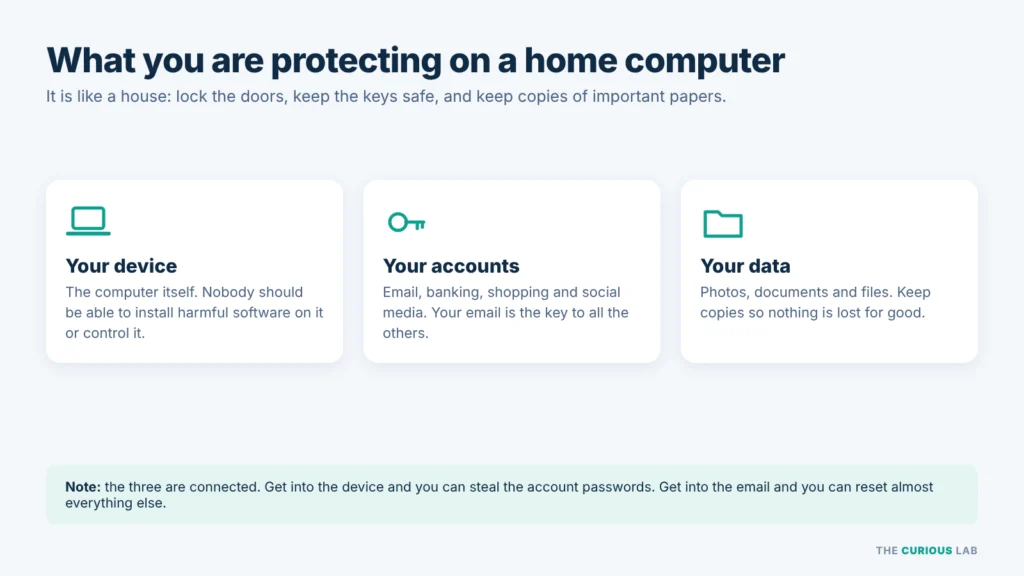
Your device, your accounts and your data. Protect all three, because each one leads to the others.
Why would an attacker want your home computer?
Many people believe they are not important enough to be hacked. “There is nothing valuable on my computer” is something we hear very often.
The attacker doesn’t see it that way. Most attacks on home computers are not aimed at one special person. They are automated and sent to a huge number of people at once, and the attacker simply waits to see who falls for them. Basically, you don’t need to be chosen to be attacked.
Here is what an attacker can get from an ordinary home computer.
- Your passwords: the passwords saved in your browser, and the login sessions that keep you signed in to websites.
- Your money: access to your online banking, your card details or your crypto wallet.
- Your email account: which they can use to reset your other passwords, or to send scams to your friends and family in your name.
- Your files: which they can lock with ransomware. Ransomware is a type of malware that locks your files and then demands payment to unlock them.
- Your computer itself: which they can quietly use to send spam, attack other websites or mine cryptocurrency, while you pay the electricity bill.
So, even if you think there is nothing valuable on your computer, the computer itself is valuable to the attacker.
How do attackers usually get into a home computer?
Attackers mostly use a handful of common doors. Once you know them, the protection steps later in this post make much more sense.
Old software: Every program has mistakes in its code. When the maker finds a mistake that an attacker could use, they release an update to fix it. If you don’t install the update, the hole stays open, and attackers know exactly where it is.
Weak or reused passwords: When a website is hacked, attackers collect the email addresses and passwords stored on it. Then they try the same email and password on banking, shopping and email websites. If you use the same password everywhere, one leak opens every door.
Tricks that make you take the action: A fake email, a fake download button, a fake “your computer is infected” pop-up, or a USB drive you found. In these cases, you are the one who opens the door. (We covered this in detail in our posts on what is baiting in cybersecurity and what is phishing.)
Fake and cracked software: Paid software or games offered for free on unofficial websites often have malware hidden inside.
An unprotected home network: A Wi-Fi router with its factory password or old software can let an attacker into your network, or let them change where your internet traffic goes.
Note that only the first and the last doors are purely technical. The other three depend on your own choices. This is why good habits matter as much as good settings.
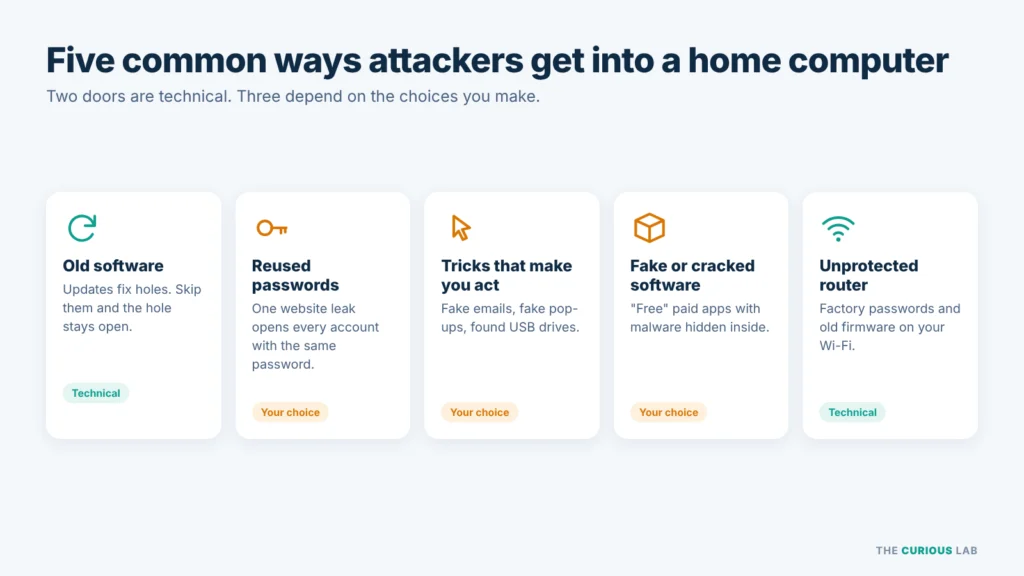
Five common doors into a home computer. Three of them depend on your choices.
What does a typical attack on a home computer look like?
It helps to see how these doors are used together. Here is a common pattern, step by step.
You search for a free version of a paid program. You click the first result, which is actually an ad. The website looks professional. You download the file and run it. The program seems to install normally, or it shows a small error and closes.
In the background, an info-stealer has been installed. This is a type of malware that collects the passwords saved in your browser, your browser cookies and your crypto wallet files, and sends them to the attacker. It can do this within seconds.
The attacker now has your email password. From your email, they reset the passwords of your shopping and social media accounts. Then they message your contacts and ask them for money.
Each step in this chain could have been stopped. Downloading from the official website would have stopped it at the start. Antivirus could have caught the file. A standard user account could have stopped the installation and asked for a password. Two-step verification on the email account would have made the stolen password much less useful.
Basically, home computer security is about putting several small locks in the attacker’s way. If one lock fails, the next one stops them.
How to protect your home computer: the steps that matter most
Here are the steps, roughly in order of importance. You don’t need to do all of them today. Start at the top, and each step makes your computer safer than it was before.
Step 1 — Keep everything updated
Updates are the single most important protection for a home computer.
An update isn’t only about new features. Most updates also close security holes that attackers already know about. So, when you keep clicking “remind me later,” you are leaving a known hole open.
Turn on automatic updates for these three things.
- Your operating system: Settings → Windows Update on Windows, or System Settings → General → Software Update on a Mac.
- Your web browser: Chrome, Edge, Firefox and Safari update themselves, but they often need a restart to finish. Close and reopen your browser now and then, and restart your computer at least once a week.
- Your other apps: Office, PDF readers, video call apps, and anything else you use often.
Note that a computer which no longer gets security updates is not safe for daily use on the internet. For example, Microsoft ended regular support for Windows 10 in October 2025, so a Windows 10 computer without extended security updates no longer gets security fixes. If your computer runs a system that no longer gets updates, plan to upgrade it or replace it.
Also remove programs you no longer use. Every program on your computer is one more thing that needs updates. Fewer programs mean fewer holes.
Step 2 — Use the built-in antivirus and keep it on
You don’t need to buy an expensive security suite to have good protection at home.
On Windows: Windows Security, also called Microsoft Defender, is free, built in and turned on by default. Open it from the Start menu and check that every item shows a green tick.
On a Mac: macOS has built-in malware protection called XProtect, and a feature called Gatekeeper that checks apps before they open. Both work in the background. Leave them alone, and don’t go around the warning that an app “can’t be opened” unless you are completely sure where the app came from.
Two rules apply here.
Use only one antivirus. Two antivirus programs running together can conflict with each other and slow your computer down. If you install a paid antivirus, Windows Security steps aside on its own.
Never trust antivirus warnings inside a web page. A real antivirus shows its alerts from the program on your computer, not from a website. A web page saying “Your computer has 5 viruses, call this number” is a scam, every time.
Step 3 — Keep the firewall on
A firewall is like a security guard at the door of your computer. It decides which network connections are allowed in.
Both Windows and macOS have a firewall built in. On Windows, it is on by default; you can check it in Windows Security → Firewall & network protection. On a Mac, it is often off by default, so turn it on in System Settings → Network → Firewall.
Note that if a program asks you to turn off your firewall or antivirus so that it can “work properly,” treat that as a warning sign. Normal software doesn’t need that.
Step 4 — Use a standard account for everyday work
Your computer has two main kinds of user accounts.
- Administrator account: can install software and change system settings.
- Standard account: can do everyday work normally, but asks for the administrator password before making big changes.
So, in a standard account, if malware tries to install itself, the computer stops and asks for a password. That pause gives you a chance to notice that something is wrong.
Keep one administrator account that you use only for installing software and changing settings, and use a standard account for daily work. Also give every family member their own account. This keeps their files, saved passwords and downloads separate from yours. A child who downloads a fake game in their own standard account does far less damage than a child who does it in yours.
Set a password or PIN on every account. A computer with no login password is open to anyone who sits in front of it.
Step 5 — Use strong passwords and a password manager
Passwords are the keys to your accounts. Most people have dozens of accounts, and nobody can remember dozens of strong passwords. That is why people reuse them, and that is exactly what attackers count on.
Two rules make a password good.
Long beats complicated. A password like “P@ssw0rd1!” looks complicated, but attackers’ tools try those patterns first. A long passphrase made of four or five random words is much harder to guess and easier to remember. Do not use song lyrics, famous quotes or your family names, because those are easy to guess.
If you need a strong password right now, use our free password generator. It creates a long, random password for you in one click.
Every account gets a different password. This is the rule that matters most. When a website you used years ago gets hacked, attackers try that same password everywhere else.
The simple answer is a password manager. A password manager is an app that creates a strong, unique password for every website and remembers them for you. You only need to remember one strong master password.
There are good free options. Google Password Manager is built into Chrome and Android, Apple Passwords is built into Mac and iPhone, and Bitwarden is a free option that works on every device. Paid options such as 1Password are also well regarded.
A password manager has one more benefit. It won’t fill in your password on a fake website, because the web address doesn’t match the real one. So, when your password manager doesn’t offer to fill in a login page, stop and check the address.
Make your master password long and unique, never use it anywhere else, and turn on two-step verification for the password manager itself.
Step 6 — Turn on two-step verification, starting with your email
Two-step verification, also called two-factor authentication or 2FA, means that logging in needs two things: your password, and a second proof that it is really you, usually something on your phone.
So, even if an attacker steals your password, they still can’t log in without that second proof.
Start with your email account, because email is the key to everything else. Whoever controls your email can reset the passwords of your other accounts. After email, turn it on for your bank, your password manager, your Microsoft, Apple or Google account, and your social media.
The second step comes in a few forms, from good to best.
- A code by SMS: much better than nothing, but text messages can be stolen through a SIM swap, where an attacker tricks your mobile company into moving your number to their SIM card.
- An authenticator app: an app such as Google Authenticator or Microsoft Authenticator that shows a new code every 30 seconds. Stronger than SMS.
- Passkeys and security keys: the strongest option. A passkey lets you sign in with your fingerprint, face or device PIN instead of a password, and it only works on the real website. So a fake website can’t steal it.
When a website offers passkeys, it is worth turning them on.
Save the backup codes that each website gives you when you set up two-step verification. Print them or store them in your password manager. They let you back in if you lose your phone.
Never share a verification code with anyone. No real bank, company or support team will ask you to read out a code that was sent to you.
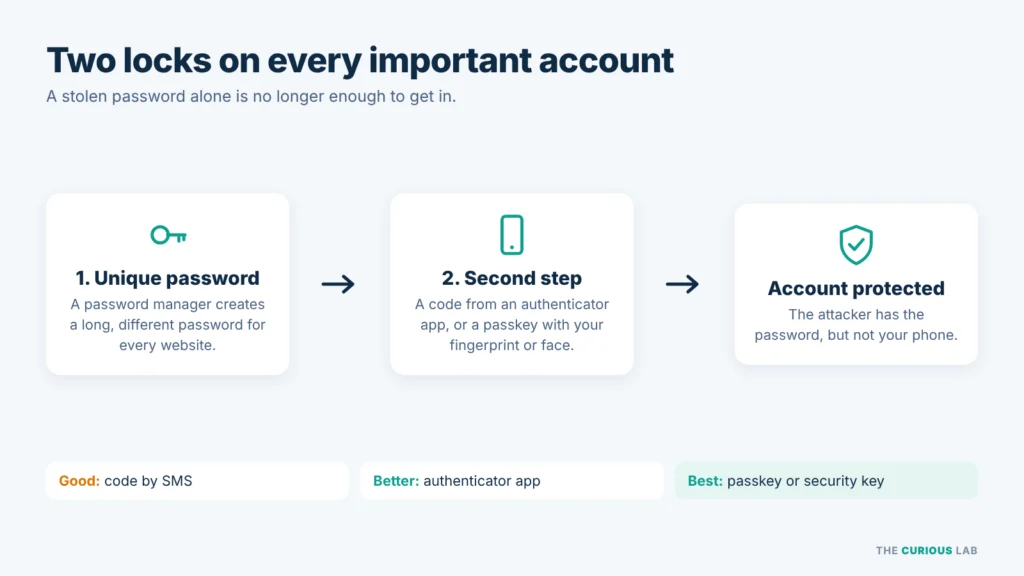
A unique password for every account, plus a second step. A stolen password alone is no longer enough.
Step 7 — Lock your screen and encrypt your drive
Physical security matters at home too, especially for laptops that leave the house.
Lock your screen whenever you walk away. Set your computer to lock by itself after a few minutes. To lock it straight away, press Windows key + L on Windows, or Control + Command + Q on a Mac.
Turn on encryption. Encryption means your files are stored in a scrambled form that can only be read after you log in. If your laptop is stolen, the thief can’t take out the drive and read your files on another computer.
- On Windows: turn on Device encryption or BitLocker, depending on your version of Windows. You will find it under Settings → Privacy & security.
- On a Mac: turn on FileVault in System Settings → Privacy & Security.
Note that you must keep the recovery key somewhere safe, outside the computer. Many Windows computers save it to your Microsoft account automatically. Without the recovery key, you can lose access to your own files if something goes wrong.
Step 8 — Back up your files
Backups are what save you when everything else fails. Ransomware, a broken hard drive, a stolen laptop, a spilled drink or a file you deleted by mistake can all be fixed with a good backup.
A simple rule to follow is the 3-2-1 rule.
- 3 copies of your important files: the original and two backups.
- 2 different kinds of storage, for example an external hard drive and a cloud service.
- 1 copy kept away from your computer, either in the cloud or on a drive that is unplugged and kept somewhere else.
Your computer already has the tools for this. Windows has File History and Windows Backup, and a Mac has Time Machine. For the cloud copy, you can use OneDrive, iCloud or Google Drive.
Two details make a big difference.
Unplug the backup drive after each backup. Ransomware can lock any drive that is connected to your computer, including your backup drive.
Syncing is not always backing up. A cloud folder that syncs with your computer copies every change, including a deleted file or a file locked by ransomware. Check that your cloud service keeps older versions of your files, so you can go back to a copy from before the problem.
Once in a while, try to restore one file from your backup. A backup you have never tested is only a hope.
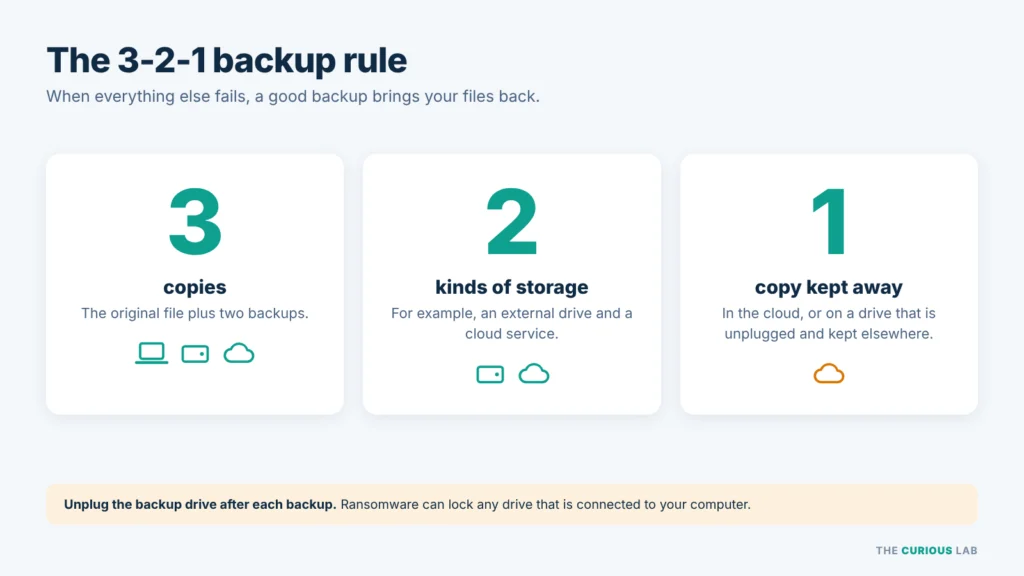
The 3-2-1 backup rule. Keep one copy where ransomware can’t reach it.
Step 9 — Secure your home Wi-Fi router
Your router is the front door of your home network. Every computer, phone and smart device in your home goes through it.
You can usually open the router’s settings by typing the address printed on the sticker of the router (often something like 192.168.1.1) into your browser, or through the app from your internet provider. Then check these six things.
- Change the router’s admin password. This is the password for the router’s settings page, and it is different from your Wi-Fi password. Factory passwords are often printed on the box or easy to find online.
- Use WPA3 security, or WPA2 if WPA3 is not available. Never use WEP or an open network with no password.
- Use a long Wi-Fi password. A long passphrase works well here too, or you can create one with our password generator.
- Keep the router’s software updated. This software is called firmware. Turn on automatic updates if your router offers them. A router that no longer gets updates from its maker should be replaced.
- Turn off WPS and remote management if you don’t use them. WPS is the push-button connection feature, and older versions have known weaknesses. Remote management lets the router be controlled from outside your home.
- Use a guest network for visitors and for smart devices such as TVs, cameras and smart speakers. This keeps them separate from the computers that hold your important files.
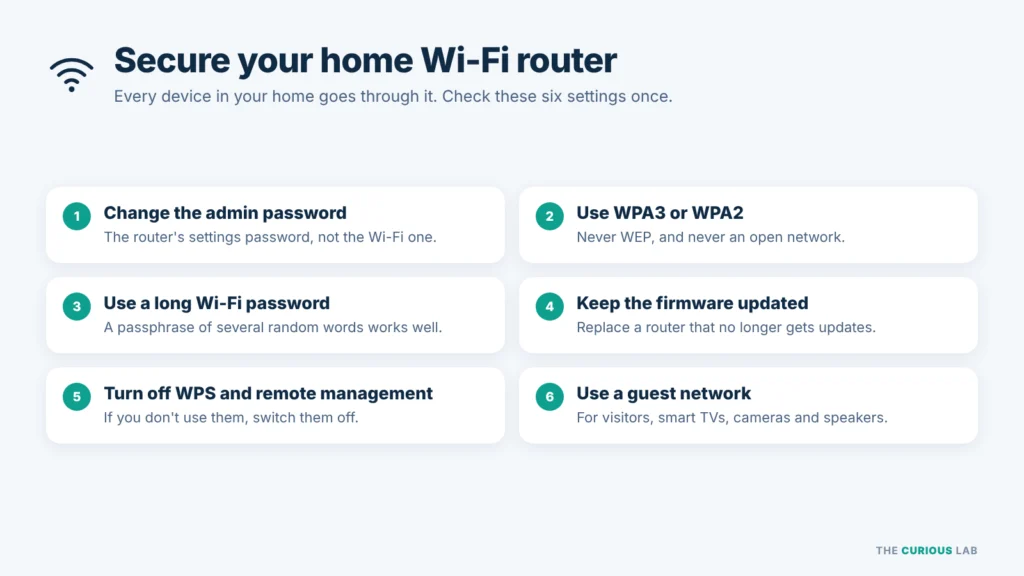
Six router settings worth checking once. Most take less than a minute each.
Step 10 — Download and browse safely
Many home computer infections start in the web browser. A few habits close most of these doors.
- Download software only from official sources: the Microsoft Store, the Mac App Store, or the maker’s own website. Type the website address yourself instead of clicking an ad in the search results.
- Never use cracked or “free” versions of paid software. They are one of the most common ways malware reaches home computers.
- Keep browser extensions to a minimum. An extension can often read everything on the pages you visit. Install only well-known extensions from the official store, and remove the ones you no longer use.
- Keep your browser’s protection on. Google Safe Browsing in Chrome and Microsoft Defender SmartScreen in Edge warn you about known dangerous websites. An ad blocker such as uBlock Origin also removes many fake download buttons.
- Check the address bar before you type a password. The padlock only means the connection is encrypted. It doesn’t mean the website is honest, because fake websites can have a padlock too.
Step 11 — Be careful with emails, messages and pop-ups
Software can only do so much. In many attacks, the attacker needs you to take one action, so the last lock is you.
- Don’t click links in unexpected emails or messages. Open the website yourself instead, by typing the address or using your saved bookmark.
- Don’t open attachments you weren’t expecting, even if they seem to come from someone you know. Their account may have been hacked.
- Ignore pop-ups that say your computer is infected. If a pop-up takes over your screen and won’t close, close the whole browser. On Windows, press Ctrl + Alt + Delete and open Task Manager. On a Mac, press Option + Command + Esc to force quit. Never call the phone number on the screen. Microsoft and Apple do not show phone numbers in pop-ups and do not call you about viruses.
- Never let a stranger connect to your computer. Remote access apps such as AnyDesk and TeamViewer are useful tools, but once someone is connected, they can do anything you can do. Scammers who pretend to be from your bank or “tech support” often ask you to install one.
- Never paste anything into Run, Terminal or PowerShell because a website told you to. We covered this fake “I’m not a robot” trick, called ClickFix, in our post on baiting.
Step 12 — Protect the whole family
A home computer is often shared. One person’s mistake can affect everyone who uses it.
- Give each person their own standard account, as we saw in Step 4.
- Use parental controls for children. Microsoft Family Safety on Windows and Screen Time on a Mac let you approve app downloads and set limits.
- Agree on one simple family rule: ask before installing anything, and ask before paying anyone online.
- Talk to older family members about scam calls and pop-ups. Attackers often target people who are less familiar with computers, and a quick conversation can prevent a big loss.
- Teach everyone the USB rule. Never plug in a USB drive you found or did not expect to receive.
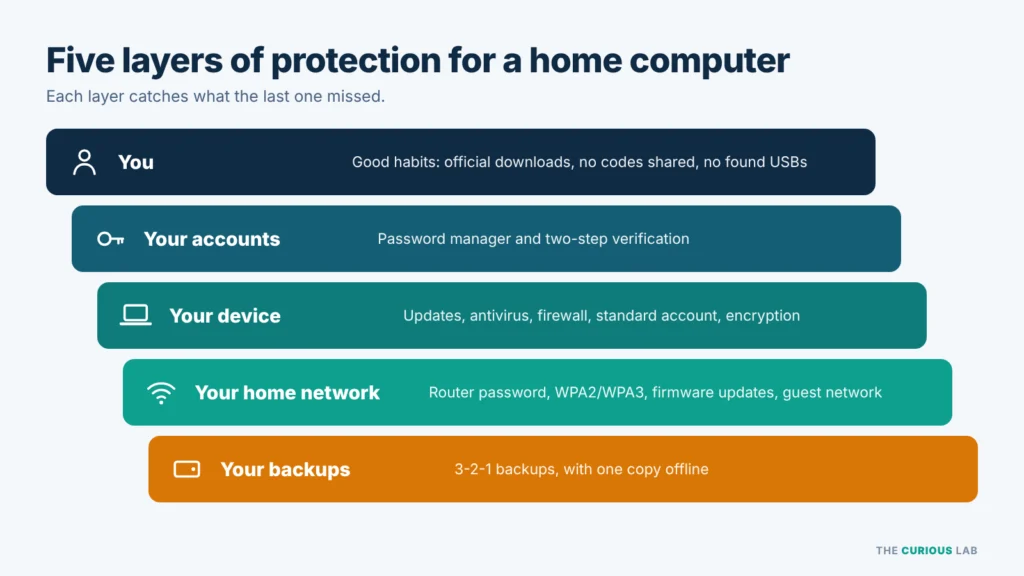
Five layers of protection. Each one catches what the last one missed.
What about public Wi-Fi and VPNs?
Laptops leave the house, so a short note on public Wi-Fi is useful.
Today, most websites use HTTPS, which encrypts what you send to them. So, on public Wi-Fi, other people on the same network can’t easily read your passwords or messages. The bigger risk is connecting to a fake network with a name like “Free Airport WiFi” that the attacker set up.
- Connect only to networks you can confirm, for example by asking staff for the exact network name.
- Turn off automatic connection to open networks.
- On Windows, choose “Public network” when you connect, which hides your computer from other devices on that network.
- Use your phone’s hotspot for banking and other sensitive tasks when you are out.
A VPN (Virtual Private Network) creates an encrypted tunnel between your computer and the VPN company, so the local network can’t see which websites you visit. It is useful on public Wi-Fi. Note that a VPN doesn’t stop malware, fake websites or phishing, so it is not a replacement for the steps above. Avoid free VPN apps from unknown makers, because you are trusting them with all of your internet traffic.
How can you tell if your computer has been hacked?
Some attacks are quiet, but many leave signs. Watch for these.
- Your passwords suddenly stop working, or you get “new sign-in” emails for logins you didn’t make.
- Your friends receive strange messages from your email or social media accounts.
- New programs, toolbars or browser extensions appear that you didn’t install, or your browser’s home page or search engine changes on its own.
- Your antivirus is turned off and won’t turn back on.
- Your computer becomes very slow, and the fan runs loudly even when you aren’t doing anything.
- Pop-ups appear even when your browser is closed.
- Your files are renamed or won’t open, and a note asks for payment. This is ransomware.
- Money is missing from your account, or you see purchases you didn’t make.
Note that one sign alone doesn’t always mean an attack. A computer can be slow for many ordinary reasons. But when several of these signs appear together, act straight away.
What to do if you think your computer is hacked:
Don’t panic, and don’t keep it to yourself. The faster you act, the less damage the attacker can do.
- Disconnect from the internet. Turn off Wi-Fi or unplug the network cable, so the attacker loses the connection.
- Do not pay a ransom. Paying doesn’t guarantee that you get your files back, and it funds the next attack.
- Use a different, clean device to change your important passwords. Start with your email, then your bank and your password manager. Choose “sign out of all devices” wherever you can, and turn on two-step verification if it was off.
- Call your bank if you typed in card details, sent money or see payments you didn’t make.
- Run a full antivirus scan. On Windows, the Microsoft Defender Offline scan in Windows Security restarts the computer and scans it before Windows fully loads. On a Mac, remove any apps you don’t recognize.
- If you are not sure the computer is clean, reset it. Use “Reset this PC” on Windows, or erase and reinstall macOS on a Mac. Then restore your files from a backup made before the problem started. Restore your documents and photos only, and reinstall programs fresh from their official websites.
- Report it. We listed where to report scams and cybercrime in the US, UK, India, Australia, Canada and Singapore in our post on baiting. Reporting helps the police and your bank warn other people.
Falling for an attack has nothing to do with being foolish. Attackers are good at their job, and they make their tricks look normal on purpose.
Your home computer security checklist
Here is everything in this post in one place. Do the first column once, and the rest becomes a habit.
| Do once | Do every month | Do every time |
| Turn on automatic updates | Restart your computer so updates finish | Download only from official sources |
| Check that antivirus and firewall are on | Run your backup, then unplug the drive | Check the address bar before typing a password |
| Create a standard account for daily use | Check for router updates | Never share a verification code |
| Set up a password manager | Remove apps and extensions you don’t use | Never call a number shown in a pop-up |
| Turn on two-step verification, starting with email | Check that every family account is still needed | Never paste commands a website gives you |
| Turn on encryption and save the recovery key | Never plug in a found USB drive | |
| Set up a 3-2-1 backup | ||
| Change the router’s admin password and use WPA2 or WPA3 |
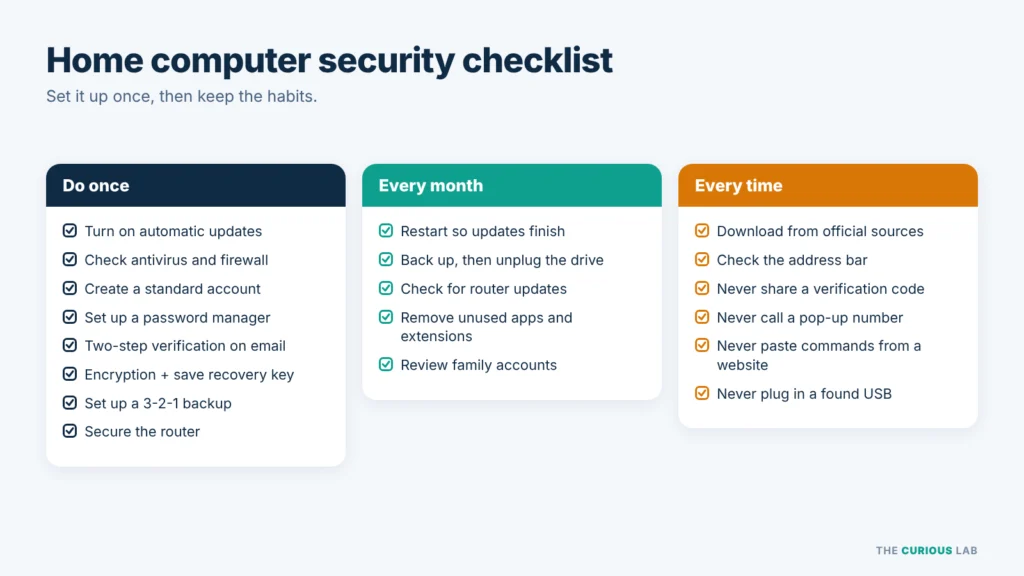
Save this. Set it up once, then keep the habits.
Final thoughts
Protecting your home computer isn’t about one perfect tool. It is about several simple locks, each one covering a different door.
Updates close the known holes. Antivirus and the firewall watch the device. A password manager and two-step verification protect your accounts. Encryption protects a lost laptop. Backups protect your files when everything else fails. And a few good habits stop the attacks that depend on you taking the action.
Note that you don’t need to do everything today. Turn on automatic updates and two-step verification on your email first. Those two steps alone close the doors that attackers use most. Then work through the checklist, one step at a time.
If you are new to cybersecurity, start with our guide on how cyberattacks work.
Stay safe, stay alert!
Related posts from The Curious Lab
- What Is Baiting in Cybersecurity? How Do Attackers Get You to Hack Yourself?
- What Is Phishing?
- How Cyberattacks Work