
Switching your iPhone to military time takes less than 30 seconds, once you know where the setting lives.
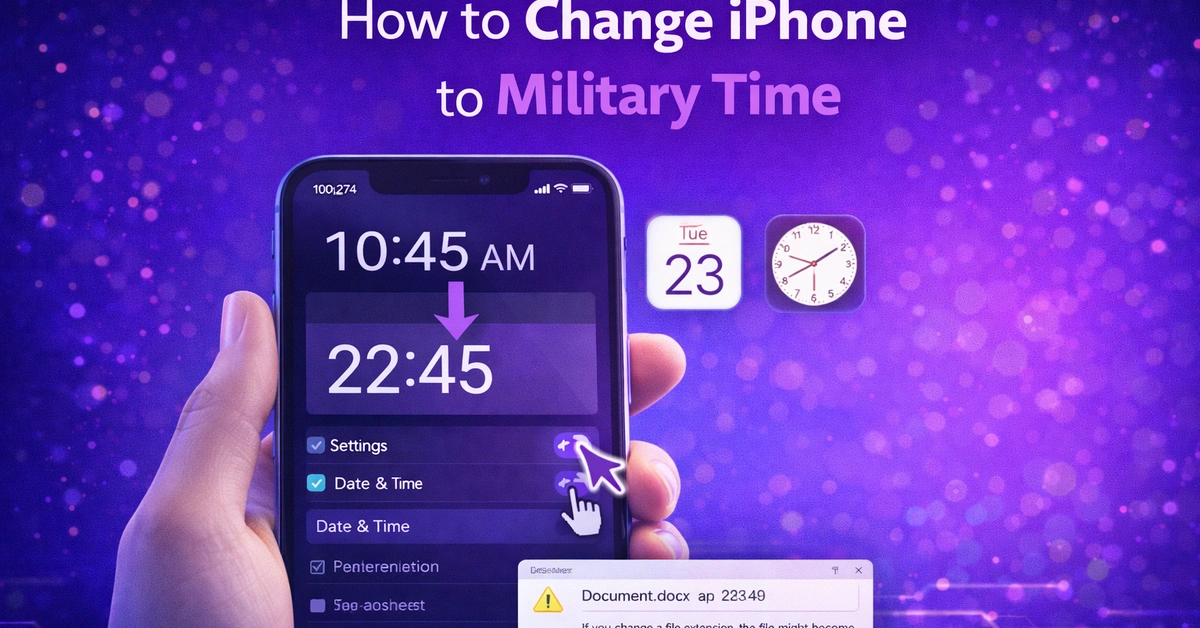
To change your iPhone to military time, go to Settings > General > Date & Time and toggle on 24-Hour Time. Your clock immediately switches from 12-hour AM/PM format to 24-hour format across your entire iPhone; the status bar, Clock app, alarms, and Lock Screen all update instantly.
In this guide, you will learn how to switch your iPhone to military time, turn it back off, change your time zone manually or automatically, fix common problems, change the clock style on your Lock Screen, and read military time quickly.
What Is Military Time on iPhone?
Military time is simply the 24-hour clock format. Instead of splitting the day into two 12-hour cycles (AM and PM), it runs from 00:00 (midnight) to 23:59 (just before midnight).
Here is a quick comparison:
| 12-Hour Format | Military Time (24-Hour) |
| 12:00 AM (midnight) | 00:00 |
| 6:00 AM | 06:00 |
| 12:00 PM (noon) | 12:00 |
| 1:00 PM | 13:00 |
| 6:00 PM | 18:00 |
| 9:30 PM | 21:30 |
| 11:59 PM | 23:59 |
The rule is simple: for any time after noon, add 12 to the hour. 3 PM becomes 15:00. 8 PM becomes 20:00. For times before noon, the hour stays the same, add a leading zero if needed (7 AM = 07:00).
Military time is widely used in the military, healthcare, aviation, emergency services, and in most countries outside the United States. It removes all confusion between AM and PM.
How to Switch iPhone to Military Time (Step-by-Step)
This works on all iPhone models running iOS 16, iOS 17, and iOS 18.
Steps:
- Open the Settings app on your iPhone
- Tap General
- Tap Date & Time
- Find the 24-Hour Time toggle
- Tap the toggle to turn it green (on)
That is it. Your iPhone immediately switches to 24-hour time. You will see the change right away in the top-right corner of your screen, where the clock lives.
No restart is needed. No confirmation prompt appears. The change is instant.
Where the 24-hour format appears after switching:
- Status bar clock (top of your screen)
- Clock app; world clock, alarms, and stopwatch
- Lock Screen clock
- Calendar app event times
- Notification times
How to Change iPhone to Army Time – Is It Different?
No. Army time and military time are the same thing. Both refer to the 24-hour clock format. The steps to switch to army time on iPhone are identical to the military time steps above:
Settings > General > Date & Time > Toggle on 24-Hour Time
The terms are used interchangeably. Whether you call it military time, army time, or the 24-hour clock, it is the same single toggle on your iPhone.
How to Turn Off Military Time on iPhone
If you switch to military time and decide you prefer AM/PM format, turning it off is just as easy.
Steps:
- Open Settings
- Tap General
- Tap Date & Time
- Tap the 24-Hour Time toggle to turn it grey (off)
Your iPhone immediately returns to 12-hour format with AM/PM. The same toggle controls both directions, on for military time, off for standard time.
How to Change the Clock Style on iPhone (Lock Screen)
Many people want to change not just the time format but also the clock’s appearance on their Lock Screen. In iOS 16 and later, you can customize the font and color of the Lock Screen clock.
Steps to change the clock font and color on the Lock Screen:
- Press and hold your Lock Screen to enter edit mode
- Tap Customize at the bottom
- Tap Lock Screen (not Home Screen)
- Tap directly on the clock at the top of the screen
- A panel will appear at the bottom with font and color options
- Swipe through the font styles to choose a different look
- Swipe through the color swatches to change the clock color
- Tap anywhere outside the panel to close it
- Tap Done in the top right to save
Font options available include: Rounded, Serif, New York, Nunito, Futura, and more, depending on your iOS version.
Note: Changing the clock font on the Lock Screen is a separate setting from changing the time format. You can have military time in any font style you like; they are independent settings.
Just as you can customize the visual style of a Google Doc background to match your preferences, Apple lets you personalize your clock’s appearance on the Lock Screen without changing the time format itself.
How to Change Time Zone on iPhone
Your iPhone automatically sets the time zone based on your location. But you can also change it manually, which is useful when traveling, working across time zones, or when automatic detection picks the wrong zone.
Change Time Zone iPhone Automatically.
Steps to enable automatic time zone:
- Open Settings
- Tap General
- Tap Date & Time
- Make sure Set Automatically is toggled on (green)
When Set Automatically is on, your iPhone uses your location and network data to detect and update the time zone as you move between regions. This is the recommended setting for most users.
If the automatic time zone is not working correctly:
- Go to Settings > Privacy & Security > Location Services
- Scroll to the bottom and tap System Services
- Make sure Setting Time Zone is toggled on (green)
This hidden setting is what actually allows the iPhone to automatically detect your time zone. Many users have it turned off without realizing it, and that is the most common reason the time zone does not update when traveling.
How to Change Time Zone on iPhone Manually
Steps:
- Open Settings
- Tap General
- Tap Date & Time
- Toggle Set Automatically to off (grey)
- Tap Time Zone
- Type the name of your city or a nearby major city in the search field
- Tap the correct result from the list
Your iPhone now uses the time zone for the city you selected. The date and time displayed underneath will update to match.
Note: When Set Automatically is turned off, your iPhone will not update the time zone when you travel. You will need to manually change it each time you move to a different time zone.
Why is “Set Automatically” Grayed Out on my iPhone?
This is a common issue. If the Set Automatically toggle appears grayed out and you cannot tap it, there are two main causes:
Cause 1: Screen Time is Restricting Date and Time Changes
Screen Time’s Content & Privacy Restrictions can lock the date and time settings.
Fix:
- Go to Settings > Screen Time
- Tap Content & Privacy Restrictions
- Tap Location Changes or scroll to find Date & Time
- Make sure it is set to Allow instead of Don’t Allow
Alternatively, scroll to the bottom of Screen Time and tap Turn Off Screen Time if you do not need it.
Cause 2: A Device Management Profile is Installed
If your iPhone has a work, school, or corporate profile installed, the IT administrator may have locked the date and time settings.
Fix: Go to Settings > General > VPN & Device Management to check what profiles are installed. Contact your IT administrator to request that the restriction be lifted.
How to Change iPhone to Military Time — What Changes and What Doesn’t
A common question is whether switching to 24-hour time affects everything on the iPhone. Here is a clear breakdown:
What changes to military time:
- The status bar clock at the top of the screen
- Lock Screen clock
- Clock app (alarms, world clocks, timers)
- Calendar event display times
- Notification timestamps
What does NOT change:
- Time zone: The 24-hour toggle is separate from your time zone settings
- Date format: The date display is controlled separately in Region settings
- Third-party apps: Some apps use their own time format settings independently
Tip: If a third-party app still shows AM/PM after you switch to military time, check that app’s own settings. Apps like Google Calendar, WhatsApp, or fitness apps may have their own independent time format preferences.
Why Does My iPhone Already Show Military Time?
If your iPhone displays time in 24-hour format and you did not set it that way, it is likely because:
- Your region is set to a country that uses 24-hour time by default. Most countries outside the US and Canada default to a 24-hour format. If your iPhone region is set to the UK, Europe, Asia, or Australia, it may automatically default to 24-hour time.
- Someone else changed the setting. If you share your iPhone or have recently restored from a backup, the setting may have been changed.
To check: go to Settings > General > Date & Time and look at the 24-Hour Time toggle. If it is green, that is why your clock shows military time.
To turn it off, tap the toggle to grey, and your iPhone will return to 12-hour AM/PM format.
Troubleshooting: Military Time Not Showing After Toggling On
If you toggle 24-Hour Time on and the clock does not change, try these fixes:
- Restart your iPhone. A quick restart forces the display to refresh. Press and hold the side and volume buttons, slide to power off, then turn it back on.
- Check your iOS version. Go to Settings > General > Software Update and make sure you are running the latest version of iOS.
- Check your Region setting. Go to Settings > General > Language & Region. The region setting can sometimes override the 24-hour toggle behavior. Make sure your region matches your actual location.
- Toggle the setting off and back on. Sometimes a double-tap on the toggle is all it takes.
Managing your iPhone settings efficiently, whether it is time format, ordering your Instagram posts, or renaming file extensions in Windows 11, always comes down to knowing the right setting in the right place.
FAQs
How to adjust to military time?
The fastest way to adjust is to memorize one simple rule: for any hour after 13:00, subtract 12 to get the PM equivalent. 14:00 = 2 PM, 18:00 = 6 PM, 22:00 = 10 PM. For hours below 12:00, the time is displayed as AM.
How to convert from AM/PM to military time?
On iPhone, go to Settings > General > Date & Time and turn on the 24-Hour Time toggle. This removes AM/PM labels from all system time displays and replaces them with the 24-hour format. The change affects your status bar, Lock Screen, Clock app, and Calendar.
Does switching to military time affect my alarms?
No. Switching to military time does not change when your alarms go off. It only changes how the time is displayed on screen. An alarm set for 7:00 AM will still ring at 7:00 AM; it will just display as 07:00 in the Clock app after you switch. No alarms need to be recreated or reset.
Can I set military time only on the Lock Screen, not everywhere?
No. The 24-Hour Time toggle in iPhone settings applies system-wide. You cannot set military time only on the Lock Screen while keeping AM/PM everywhere else.
Conclusion
Military time removes any confusion between AM and PM for good. No more accidentally setting your alarm for 7 PM when you meant 7 AM. No more second-guessing when scheduling across time zones.
If you are traveling, also take a minute to check that Set Automatically is on and that Setting Time Zone is enabled in Location Services. Those two settings together ensure your iPhone always shows the correct local time without any manual adjustments.
Once you spend a few days reading the 24-hour format, you will find it more natural than you expected. Give it a week; most people never switch back.