Forgot your WiFi password? No need to reset your password, there are a few ways to find your password with your iPhone.
iPhone actually stores all your WiFi passwords.
Here we have provided a few simple ways to find the password.
The Quick Method: Using iPhone Settings (iOS 16 and Later)
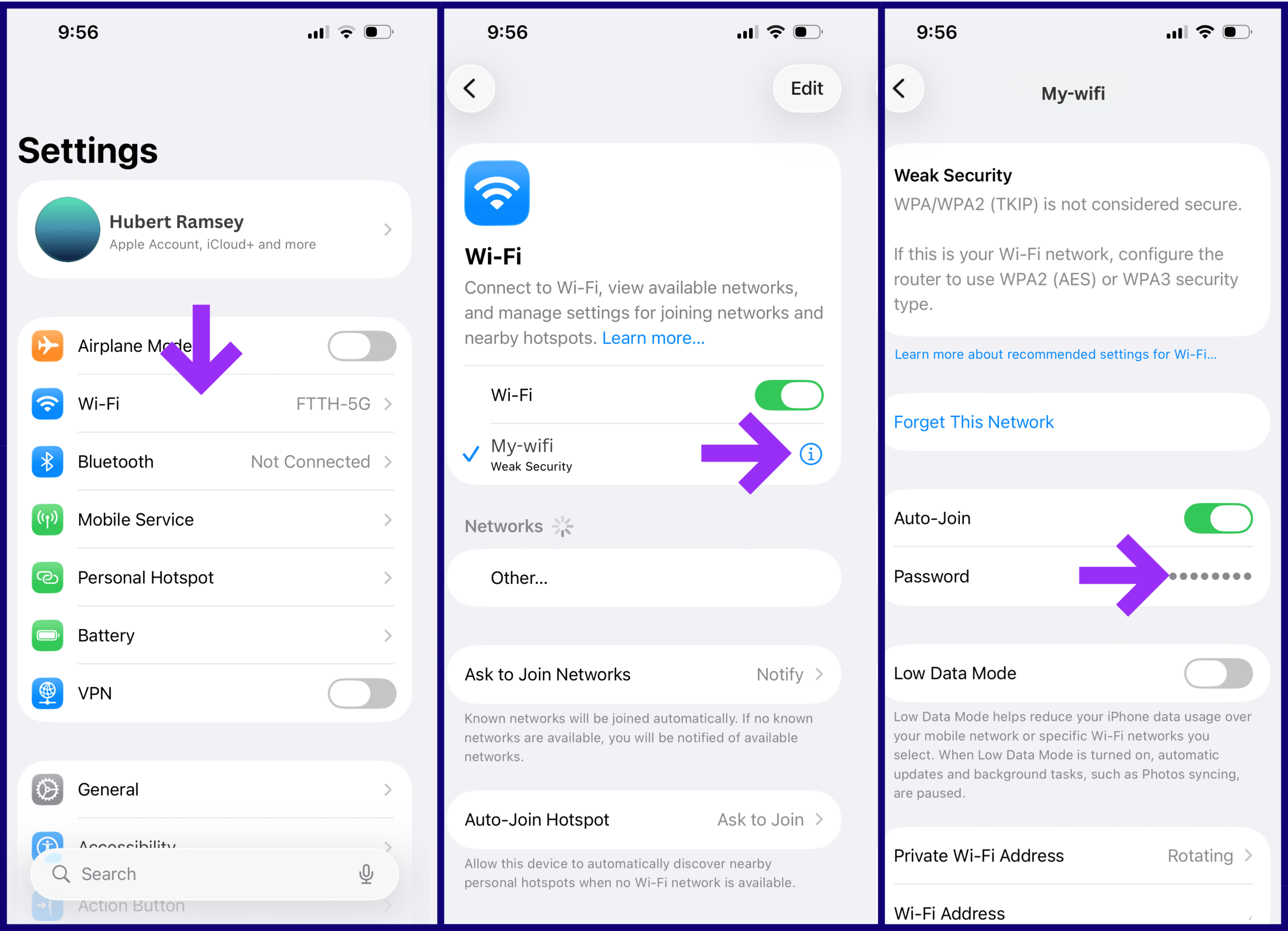
First, open up your Settings app.
Tap on WiFi near the top of the menu.
You’ll see a list of all the networks nearby. Select the one you need the password for. It’ll have a little blue “i” icon next to it. Tap that icon.
Once you’re in, you’ll see a “Password” field. Tap on it, and your iPhone will ask you to verify with your Face ID, Touch ID, or your passcode.
You can tap it to copy and paste it somewhere else.
What If You’re Still on an Older iOS Version?
Not everyone updates their phone with the new iOS updates. If you are using iOS 15 or earlier, you cannot use the above trick. Instead, you need a Mac and be signed into the same iCloud on both devices.
On your Mac, open up Keychain Access. You can find it by pressing “Command + Space” to open Spotlight, then typing “Keychain Access.” Once it’s open, look for the search bar in the top-right corner and type your WiFi network’s name.
When you find it, double-click on the network name. A new window pops up with all sorts of info about that network. Down near the bottom, you’ll see a checkbox that says “Show password.” Click that, enter your Mac’s password when it asks, and your WiFi password will show up.
This trick may seem harder, but it works.
What’s New in iOS 26 for WiFi Passwords
If you’ve upgraded to iOS 26, Apple has integrated some new features for WiFi if you travel or use public networks often.
Captive Assist: A Game Changer for Hotel and Airport WiFi
Connecting to a WiFi when you are in a hotel leads to a web page where you have to fill in your name and room number. Then, to connect every device to the wifi, you have to repeat the same process, which seems time-consuming.
iOS 26 fixes this with something called Captive Assist. These are those public networks that pop up a login page before you can actually use the internet. Hotels, airports, coffee shops, conference centers.
With Captive Assist turned on, once you log in on one Apple device, that information automatically syncs to all your other devices running iOS 26 or iPadOS 26. Your iPad will literally ask you, “Hey, want to use the login details from your iPhone?” and you just tap yes. No more typing your room number five times or re-entering that conference access code.
The feature works through an autofill system. After you enter your details on the portal login page on one device, your other Apple devices will show an “Autofill from [Your Device Name]” option when they hit the same login page.
WiFi Aware Technology
iOS 26 also added support for WiFi Aware, which is basically an industry-standard way for nearby devices to discover and connect to each other without needing a traditional WiFi network. It creates direct, encrypted connections between devices for file sharing, gaming, and streaming.
For everyday users, you probably won’t know the WiFi Aware directly. It’s more of something that apps will use behind the scenes. But it’s there to make your device-to-device connections more secure and efficient.
Using the Passwords App (iOS 18 and iOS 26)
Starting with iOS 18, Apple added a dedicated Passwords app, and it’s best for managing all passwords. iOS 26 keeps this same great functionality. Think of it as a vault for all your passwords: websites, apps, and WiFi networks.
Here’s something that trips hate about it: this whole password-finding thing only works if you’ve got iCloud Keychain turned on. It’s Apple’s way of syncing all your passwords across your devices, and it’s actually pretty easy to use.
To check if it’s on, go to Settings, tap your name at the top, then select iCloud. Scroll down until you see Passwords and Keychain. If the toggle next to it is green, you’re all set. If it’s gray, then it won’t work.
With iCloud Keychain running, every WiFi network you connect to gets saved. Then, when you sign into your other Apple devices with the same Apple ID, those passwords will be automatically used. It’s one of those things that just works in the background; the user will never know about it.
Using the Passwords App
Open the Passwords app from your home screen. You might need to verify your identity first with Face ID, Touch ID, or your passcode, then select the WiFi tile. It can also be found on the main screen.
Tap on WiFi, and you’ll see all the networks you’ve connected to in the past. Find the one you need, then tap it. You’ll see the password field right there. Tap it to reveal the password, and you can copy it from there if you need to share it or use it somewhere else.
What’s new about the Passwords app is that it’s not just for WiFi. You can see all your saved website logins, app passwords, and everything. And in iOS 26, this integration works even better with the new Captive Assist feature for logins, such as hotel room connections.
The iCloud Keychain Connection
Sharing WiFi Without Sharing the Password
When someone asks for access to your WiFi, you don’t need to look for passwords and share them. You can just share the network directly from your iPhone to theirs.
Make sure both phones have WiFi and Bluetooth turned on. Consider your friend here; your friend should try to connect to your network. They’ll get to the password screen and just sit there. On your iPhone (the one that’s already connected), a little pop-up will appear asking if you want to share the password. Tap “Share Password,” and within seconds, your friend’s phone connects automatically.
They never see the actual password, and you don’t have to remember it or type it out.
This only works with Apple devices, including iPhones, it will not work on Android devices.
Keeping Your Passwords Safe
Use a strong password or passcode on your device to make sure no one has access to your passwords. As your iPhone has stored all your passwords, it is pretty safe there. Only you can access those passwords with your Face ID, Touch ID, and passcode.
Make sure you change your passcode often. Apple offers 72 hours in case you forget the new passcode. You can enter your old passcode within 72 hours to change it again.
Never keep passwords like “1234” or “0000” for safety reasons.
Remember, if you lose your device and your password is “0000,” anyone will have access to your passwords.
Wrapping Things Up
Finding your WiFi password on an iPhone used to feel like you needed a computer science degree or in-depth knowledge of mobile phones. With the new iOS Captive Assist feature or an older version, Apple has made it pretty straightforward and easy for its users. A few easy steps, and you will have your password.
The key is making sure iCloud Keychain is on so your passwords are actually being saved in the first place. Once that’s sorted, whether you’re using the Settings app, the Passwords app, or even your Mac, you can access your passwords easily.
If you’re on iOS 26, you’re getting some serious upgrades to how WiFi works across your devices. That Captive Assist feature alone is worth the update if you are a frequent traveller to hotels and airports.
Next time someone asks for your WiFi password, you’ll know exactly where to find it.