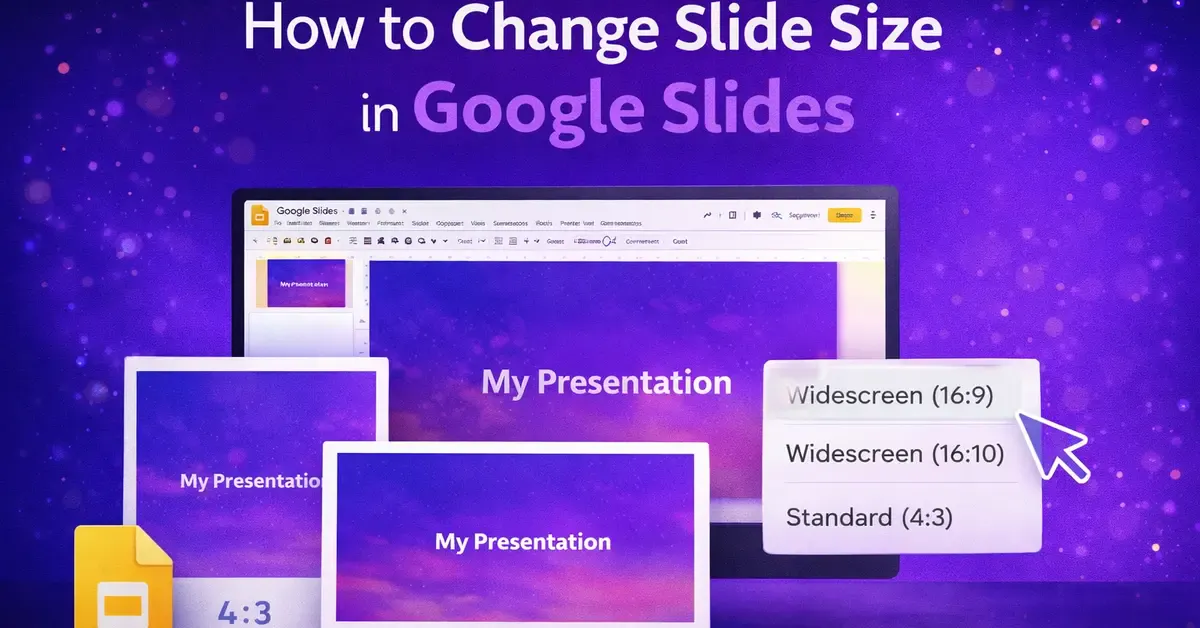
Changing the slide size in Google Slides takes less than a minute, once you know where to find the option. It is not obvious at first, but it is a lot simpler than most people expect.
To change slide size in Google Slides, go to File > Page Setup, click the dropdown, and choose a preset size or enter custom dimensions. Click Apply, and your slides resize instantly. This works on desktop and Chromebook. On mobile, use a browser instead of the app.
In this guide, you will learn how to resize Google Slides on desktop, Android, iPhone, and iPad, plus how to set A4 size, change the aspect ratio, set custom dimensions in pixels or cm, and what to do when your content shifts after resizing.
Google Slides Default Size and Aspect Ratio
Before you change anything, it helps to know what you are starting with.
By default, Google Slides opens every new presentation in Widescreen 16:9 format.
The default Google Slides dimensions are 960 x 540 pixels, which is a 16:9 aspect ratio. This matches most modern monitors, projectors, and laptop screens.
Here are all the preset sizes Google Slides offers:
| Preset | Aspect Ratio | Dimensions (inches) | Dimensions (px) |
| Widescreen (default) | 16:9 | 10 x 5.63 in | 960 x 540 px |
| Standard | 4:3 | 10 x 7.5 in | 1024 x 768 px |
| Widescreen | 16:10 | 10 x 6.25 in | 1280 x 800 px |
| Custom | Any | You set it | You set it |
Is Google Slides 16:9 or 4:3?
How to Change Slide Size in Google Slides (Desktop)
This is the main method and works in any desktop browser, like Chrome, Safari, Firefox, or Edge.
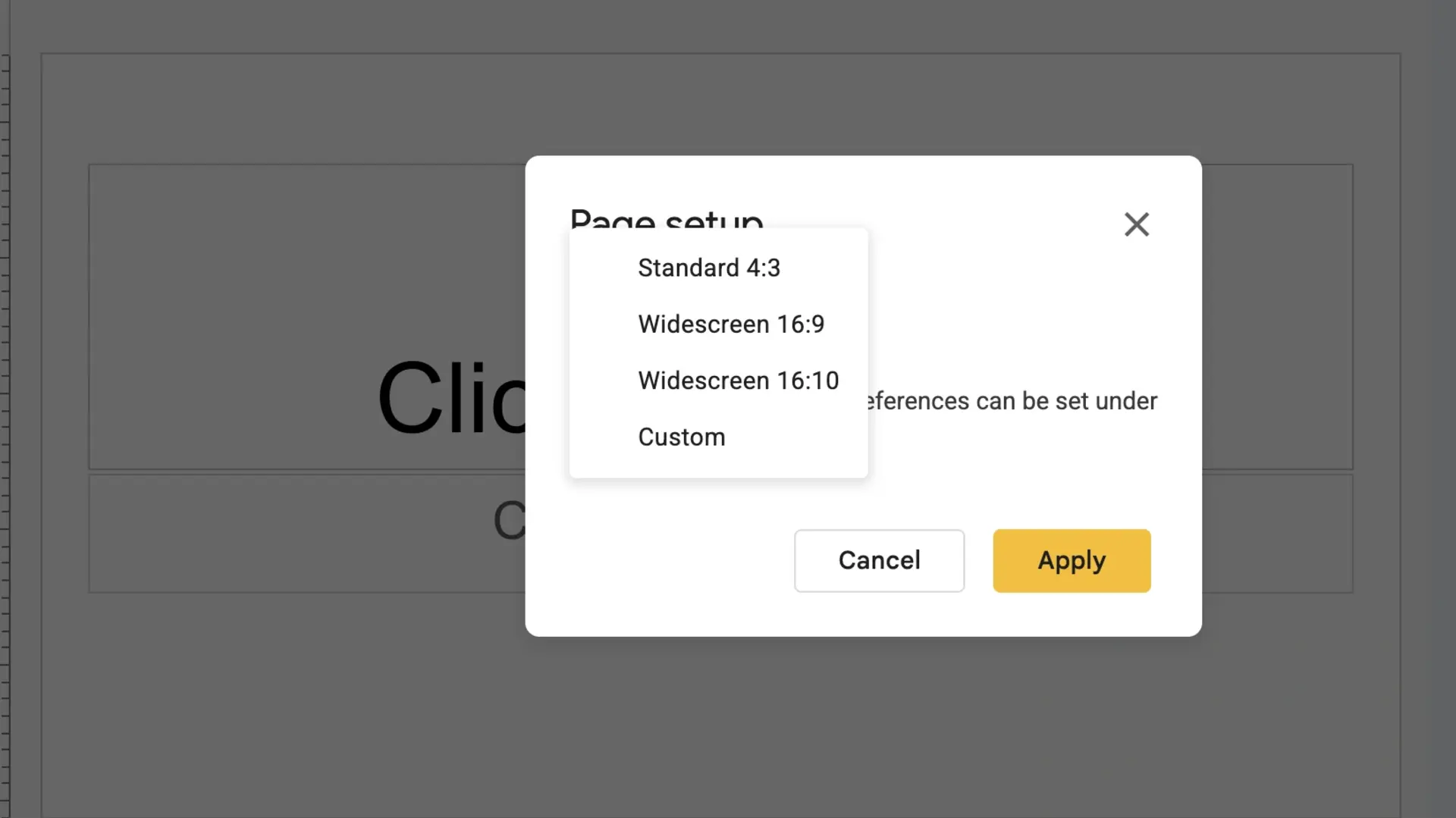
Steps:
- Open your presentation in Google Slides
- Click File in the top menu bar
- Select Page Setup from the dropdown
- Click the dropdown box that shows the current size (e.g., “Widescreen 16:9”)
- Choose one of the preset options, or select Custom to enter your own size
- Click Apply
Your slides will resize immediately. All slides in the presentation change at once.
Important: After resizing, check every slide. Text boxes, images, and shapes may shift or overlap. You will need to adjust them manually.
Also Read: How to Change the Background of a Google Doc (Desktop, Mobile & iPhone)
How to Adjust Slide Size in Google Slides to a Custom Size
When the preset options are not enough, use the Custom size option. This lets you enter any dimensions in inches, centimeters, points, or pixels.
Steps:
- Go to File > Page Setup
- Click the dropdown and select Custom
- Enter your desired width and height
- Use the unit dropdown to switch between inches, cm, points, or pixels
- Click Apply
This is how you set Google Slides dimensions in px, cm, or any other unit you need.
How to Make Google Slides A4 Size
A4 is a standard paper size used for printing in most countries outside the US. Google Slides does not list A4 as a preset, so you need to enter it manually as a custom size.
A4 dimensions for Google Slides:
- In inches: 8.27 wide x 11.69 tall
- In centimeters: 21 cm wide x 29.7 cm tall
Steps:
- Go to File > Page Setup
- Click the dropdown and choose Custom
- Set the unit to Inches (or Centimeters)
- Enter 8.27 x 11.69 (inches) or 21 x 29.7 (cm)
- Click Apply
Your slides are now A4 paper size and ready for printing.
Need A4 landscape instead? Just swap the values: 11.69 wide x 8.27 tall.
How to Make Google Slides Paper Size (US Letter / 8×11)
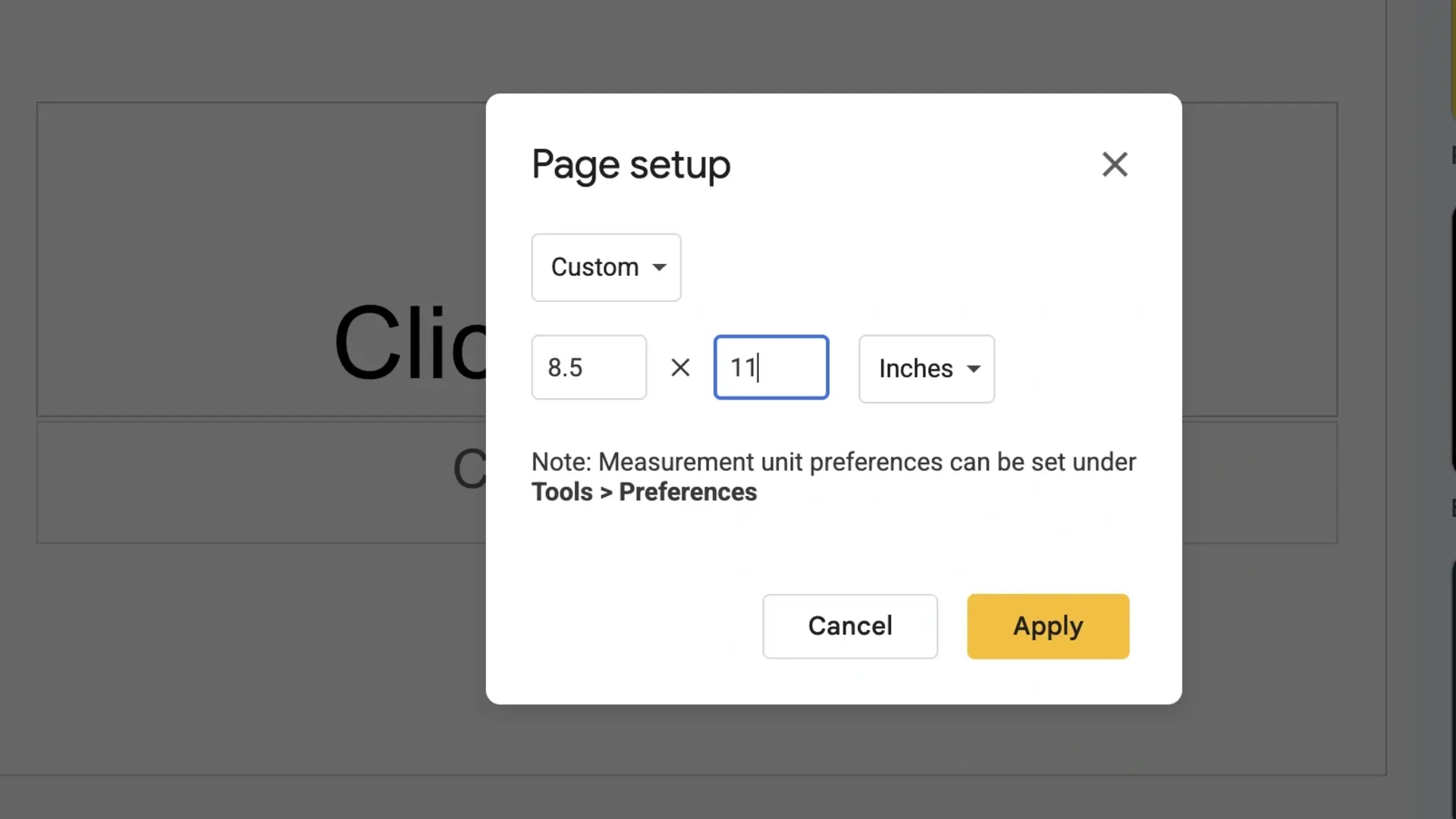
For US standard paper size (also called Letter size or 8.5 x 11), follow the same custom process:
- Go to File > Page Setup
- Select Custom
- Set the unit to Inches
- Enter 8.5 wide x 11 tall
- Click Apply
This is also how you change your Google Slides to 8×11 for printing handouts or worksheets.
How to Make Google Slides 1920×1080
1920×1080 is the Full HD resolution, perfect for YouTube thumbnails, TV screens, and professional presentations.
Steps:
- Go to File > Page Setup
- Select Custom
- Change the unit to Pixels
- Enter 1920 for width and 1080 for height
- Click Apply
This gives you a true 1920×1080 Full HD slide canvas. Keep in mind this is still a 16:9 ratio, just at a higher resolution than the default 960×540.
How to Change the Aspect Ratio in Google Slides
The aspect ratio controls the shape of your slides: wide, square, or tall. Changing it can make a big difference depending on where you present.
Common Aspect Ratios and When to Use Each:
- 16:9: Best for modern screens, monitors, projectors, and most presentations. This is the default.
- 4:3: Best for older projectors, printed handouts, and square-ish displays
- 16:10: Good for tablets and designer monitors
- Custom (portrait): Good for phone screens, posters, and social media content
To change the aspect ratio, go to File > Page Setup and pick a different preset from the dropdown, or enter custom dimensions that match the ratio you need.
Google Slides Dimensions in Pixels and Centimeters – Quick Reference
Use this table when you need exact Google Slides dimensions in px or cm for specific use cases:
| Use Case | Width | Height | Unit |
| Default (16:9) | 960 | 540 | px |
| Full HD (16:9) | 1920 | 1080 | px |
| Standard (4:3) | 1024 | 768 | px |
| A4 Portrait | 21 | 29.7 | cm |
| A4 Landscape | 29.7 | 21 | cm |
| US Letter Portrait | 8.5 | 11 | inches |
| US Letter Landscape | 11 | 8.5 | inches |
| Square (Social) | 10 | 10 | inches |
| Instagram Story | 1080 | 1920 | px |
Can You Change the Size of Just One Slide in Google Slides?
No. Google Slides does not let you change the size of a single slide.
When you change the slide size via Page Setup, it applies to every slide in the entire presentation. There is no built-in way to set a different size for individual slides.
Workaround for Different-sized Slides:
- Create a separate Google Slides file for the slide that needs a different size
- Export that slide as an image (PNG or JPEG)
- Insert the image into your main presentation as a picture on its own slide
This is the only reliable way to make slides appear in different sizes in a single deck.
How to Change Slide Size in Google Slides on Phone
This is where most people get stuck. The Google Slides mobile app does not have a Page Setup option. You cannot resize slides directly from the Android or iPhone app.
The solution is to use your phone’s browser in desktop mode instead.
How to Change Slide Size in Google Slides on Android
- Open Google Chrome on your Android phone
- Type slides.google.com in the address bar. Do NOT open the app
- Tap the three-dot menu in the top-right corner of Chrome
- Check the box next to “Desktop site.”
- The page reloads in full desktop mode
- Open your presentation
- Tap File > Page Setup
- Choose your size and tap Apply
- Use two fingers to pinch and zoom to navigate the menus
Your changes save automatically. The next time you open the presentation in the Slides app, the new size will be there.
How to Change Slide Size in Google Slides on iPhone
- Open Safari on your iPhone
- Go to slides.google.com
- Tap the AA icon on the left side of the address bar
- Select “Request Desktop Website”
- The page reloads as the full desktop version of Google Slides
- Open your presentation
- Tap File > Page Setup
- Select your size and tap Apply
- Pinch to zoom in on the menus to tap accurately
The resized presentation will sync and display correctly in the Google Slides app as well.
How to Change Slide Size in Google Slides on iPad
The iPad method is identical to the iPhone method. Use Safari with desktop mode enabled. However, the iPad has a bigger screen, so the desktop interface is easier to navigate.
Tip for iPad users: Because the screen is larger, you may not need to zoom in at all. The desktop version of Google Slides works nearly as well on an iPad as it does on a laptop.
What Happens to Your Content When You Resize Slides?
This is the part most guides skip, and it is important.
When you change the slide size or aspect ratio, Google Slides gives you two choices:
- Maximize: Scales your content up to fill the new slide size. Some content may go off the edges.
- Don’t Scale: Keeps your content at its original size but leaves space around it.
Which One Should You Choose?
- Choose Maximize if your content is mostly text, and you want it to fill the slide
- Choose Don’t Scale if you have precise layouts, images, or graphics that should not be stretched
After applying either option, go through each slide and manually fix anything that looks off. Elements such as text boxes, images, and shapes often need realignment after resizing.
Tips Before You Resize Your Google Slides
- Always make a copy first. Go to File > Make a copy before you change the size. This gives you a backup if something goes wrong.
- Change the size before adding content. If you are starting a new presentation, set the slide size first, before you build any slides.
- Check every slide after resizing. Even with “Maximize” selected, some elements shift or overlap, requiring manual fixes.
- Use guides and rulers to realign. Go to View > Show ruler and View > Guides to help reposition elements after resizing.
FAQs
How to make Google Slides 1920×1080?
Go to File > Page Setup, select Custom, change the unit to Pixels, and enter 1920 for width and 1080 for height. Click Apply. This sets your slides to Full HD resolution, which is ideal for TV screens, YouTube thumbnails, and high-quality presentations.
How do I resize a slide?
Go to File > Page Setup and choose a preset size (16:9, 4:3, 16:10) or select Custom to enter your own dimensions. Click Apply. The resize applies to all slides in the presentation. You cannot resize a single slide on its own.
Why are my Google Slides so small?
This usually happens because the presentation is set to 4:3 instead of 16:9 widescreen. Go to File > Page Setup and select Widescreen 16:9. This can also happen if you are viewing the presentation in a small browser window. Try pressing Ctrl + Shift + F to go full screen.
Is Google Slides 16:9 or 4:3?
Google Slides defaults to 16:9 widescreen for all new presentations. This has been the default since 2013. Older presentations may still be in 4:3 standard format. You can check and adjust the ratio at any time via File > Page Setup.
How do I change my Google Slides to 8.5 x 11?
Go to File > Page Setup, select Custom, set the unit to Inches, and enter 8.5 for width and 11 for height. Click Apply. This sets your slides to US Letter size, which is the standard for printing on regular paper.
Can I change slide size on the Google Slides mobile app?
No. The Google Slides app on Android and iPhone does not have a Page Setup option. To change slide size on mobile, open your presentation in Chrome (Android) or Safari (iPhone) and request the desktop site. Then use File > Page Setup as you would on a computer.
How do I change Google Slides dimensions in centimeters?
Go to File > Page Setup, select Custom, and change the unit dropdown to Centimeters. Then enter your desired width and height values. For A4, use 21 cm x 29.7 cm.
Does resizing Google Slides affect the content on each slide?
Yes. When you resize, Google Slides will ask you to either Maximize (scale content up) or Don’t Scale (keep content size and leave space). Either way, you should check every slide after resizing and manually fix any text boxes, images, or shapes that have shifted.
Conclusion
Resizing your Google Slides presentation is straightforward on desktop, just three clicks through File > Page Setup. For A4, 1920×1080, or any custom size, the Custom option gives you full control in inches, centimeters, or pixels.
On mobile, the app does not support slide resizing directly. But loading Google Slides in your phone’s browser with desktop mode enabled solves that in seconds.
One thing to always remember: the resize applies to every slide in your presentation, not just one. Make a copy of your file before you change anything, just in case.
Now you have every size, every dimension, and every device covered. Set your canvas right, and build your best presentation.