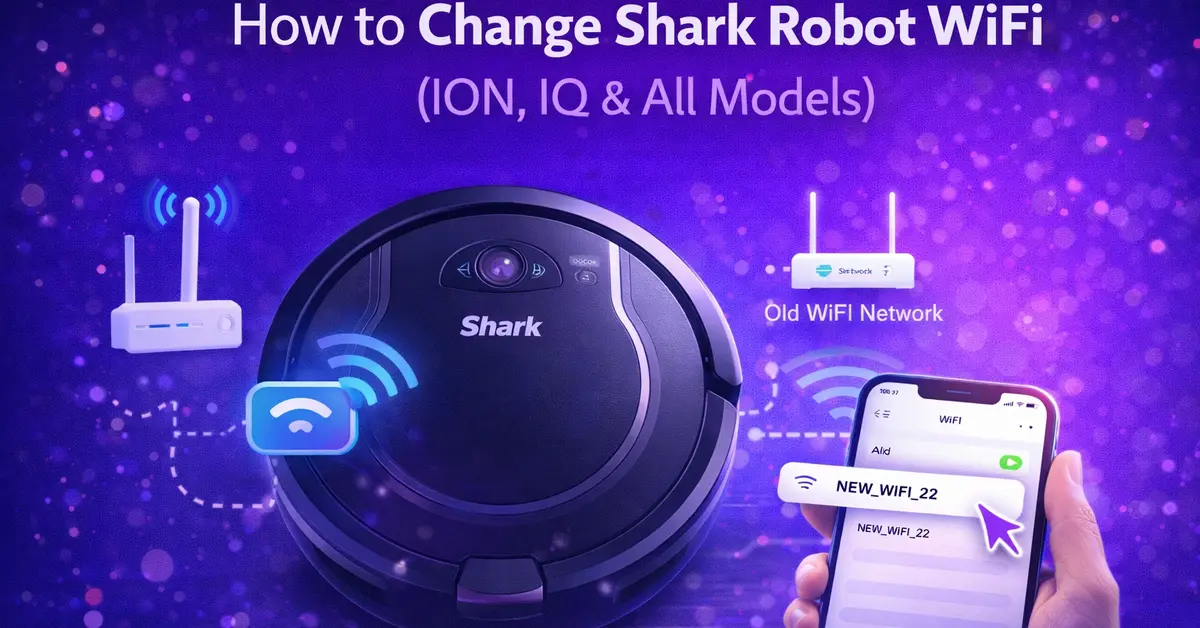
Changing the WiFi on your Shark robot vacuum is something almost every owner needs to do at some point, after switching routers, changing passwords, or moving homes.
To change the WiFi on your Shark robot, press and hold the WiFi button (or the Dock + Spot/Max buttons, depending on your model) until the light blinks. Then open the SharkClean app, remove the old network, and reconnect to the new one. The whole process takes under five minutes.
In this guide, you will learn where the WiFi button is on your Shark robot, how to change WiFi on Shark ION and IQ robots step by step, how to reset the connection, and how to fix common problems.
Before You Start – What You Need
Have these ready before changing your Shark robot WiFi:
- Your new WiFi network name (SSID) and password
- Your smartphone with the SharkClean app installed (free on iOS and Android)
- Your Shark robot powered on and off the dock
- A 2.4 GHz WiFi network. Shark robots do NOT support 5 GHz.
The 2.4 GHz requirement is the most common reason the setup fails. If your router broadcasts on both 2.4 GHz and 5 GHz under the same name, log in to your router settings and set them to different names so you can select the correct one.
Where Is the WiFi Button on the Shark Robot Vacuum?
There is no dedicated WiFi-only button on most Shark robot models. Instead, specific button combinations put the robot into WiFi pairing mode.
Here is where the WiFi button function lives on each model:
Shark ION Robot: Press and hold the DOCK + SPOT buttons simultaneously for 5 seconds. The WiFi indicator light will start blinking. This means it is in pairing mode.
Shark IQ Robot: Press and hold the DOCK + MAX buttons simultaneously for 5 seconds until you hear a beep and the WiFi light blinks.
Shark AI Robot (newer models): Press and hold the DOCK + CLEAN buttons together for 5 seconds until the light ring blinks.
Some models with a dedicated WiFi button: On a few Shark models, there is a small button labelled with a WiFi symbol on the top or side of the robot. Press and hold it for 3–5 seconds until the light blinks.
If you are unsure which buttons to use, check the label on the bottom of your robot or search your model number on the SharkClean support page.
How to Change WiFi on Shark ION Robot
The Shark ION is one of the most popular models, and changing its WiFi is straightforward.
Steps:
- Open the SharkClean app on your phone
- Connect your phone to the new WiFi network you want to use
- In the app, tap Settings (gear icon)
- Select My Robot, then tap your robot’s name
- Tap More Options or WiFi Settings
- Select Forget Network to remove the old connection
- Go back to the app home screen and tap the + icon or Set Up New Robot
- On your robot, press and hold DOCK + SPOT for 5 seconds until the WiFi light blinks
- Follow the on-screen prompts in the app to select your new network
- Enter your WiFi password and tap Connect
- Wait up to 2 minutes for the connection to complete
When the robot’s WiFi light stops blinking and turns solid, the connection is successful.
How to Change WiFi on Shark IQ Robot
The Shark IQ follows nearly the same process, with one button difference.
Steps:
- Open the SharkClean app and make sure your phone is on the new 2.4 GHz network.
- Tap Settings > My Robot > your robot name
- Tap WiFi Settings > Forget Network.
- Tap Set Up New Robot or the + icon.
- On your robot, press and hold DOCK + MAX for 5 seconds until you hear a beep and see the WiFi light blink
- Follow the app prompts — it will ask you to go to your phone’s WiFi settings and connect to the robot’s temporary network (labeled something like “SharkRobot-XXXX”)
- Return to the app and select your home WiFi network.
- Enter your password and tap Connect.
- The app will confirm the connection with a success screen.
iOS users note: After the robot enters pairing mode, the app will redirect you to your iPhone’s WiFi settings to connect to the robot’s temporary network. This is normal. Select it, then return to the SharkClean app to finish.
This is similar to how iOS handles initial device pairing for other smart home devices. Just as when you change time settings on an iPhone, the system guides you step by step once you know where to tap.
Understanding the WiFi Light Indicators
Your Shark robot uses light signals to tell you what is happening with the WiFi connection:
| Light Status | What It Means |
| Blinking blue/white | Searching for or connecting to WiFi |
| Solid green | Connected successfully |
| Blinking rapidly | Failed to connect. Try again |
| No light | WiFi is off, or the robot is powered down |
If the light blinks rapidly after you try to connect, the most common causes are a wrong password, 5 GHz network selected, or the robot being too far from the router.
Where Is the Reset Button on the Shark Robot?
The reset button location varies by model:
Shark ION Robot: Turn the robot upside down. You will find a small power switch on the underside. Press and hold it for 10 seconds until the robot powers off. This performs a soft reset.
Shark IQ Robot:The reset is done through a button combination. Press and hold DOCK + SPOT (or DOCK + MAX on IQ) simultaneously for 10 seconds until the light ring flashes.
Via the SharkClean app: Open the app > Settings > My Robot > More Options > Reset > Yes to confirm.
Important: A factory reset erases all saved maps, cleaning schedules, and preferences. Only do this if the standard WiFi change method does not work.
Troubleshooting: Shark Robot Not Connecting to New WiFi
If your Shark robot will not connect after following the steps above, try these fixes:
Check your WiFi band first
This solves the problem in most cases. Log in toin to your router and verify that you are connecting to the 2.4 GHz band, not the 5 GHz band. If your router uses the same name for both bands, split them into separate names (e.g., “HomeNetwork_2.4” and “HomeNetwork_5”).
Move the robot closer to the router
During setup, keep the robot within 10 feet of your router. Walls and distance weaken the signal during pairing. Once connected, you can move it back to its dock.
Delete the robot from the app completely
Sometimes the app holds onto old credentials. Remove the robot entirely from your device list in the app, then add it as a brand-new device.
Restart everything
Turn off your router for 30 seconds and turn it back on. Power cycle the robot by flipping the switch underneath. Then try the setup process again from the beginning.
Check your app version
An outdated SharkClean app can cause connection failures. Update it in the App Store or Google Play before trying again.
Small tech fixes like this follow the same logic across devices: whether you are changing scroll direction on a Mac, updating slide dimensions in Google Slides, or reconnecting a smart vacuum, start with the simplest fix and work your way up.
Can I Use My Shark Robot Without WiFi?
Yes. Your Shark robot vacuum works without a WiFi connection. You can still press the Clean button directly on the robot to start a cleaning run.
What you lose without WiFi:
- Remote control via the SharkClean app
- Cleaning schedules
- Voice control (Alexa and Google Assistant)
- Real-time status updates
- Firmware updates
- Floor mapping features (on IQ and AI models)
WiFi is not required for basic operation. It just unlocks the smart features that make the robot far more convenient to use.
FAQs
How do I connect my Shark robot to a new Wi-Fi?
Open the SharkClean app, go to Settings > My Robot > WiFi Settings > Forget Network. Then tap Set Up New Robot. On the robot, press and hold the WiFi button combination for your model (DOCK + SPOT for ION, DOCK + MAX for IQ) for 5 seconds until the light blinks.
How do I change the Wi-Fi on my robot vacuum?
You cannot change the WiFi network directly on the robot itself. You must do it through the SharkClean app. Open the app, find your robot in Settings, select Forget Network to clear the old connection, then go through the new device setup process to connect to your new network.
Where is the reset button on my Shark robot?
On Shark ION models, the reset switch is on the robot’s underside. Flip it over and hold the power switch for 10 seconds. On IQ models, press and hold the DOCK + SPOT buttons for 10 seconds. You can also reset via the SharkClean app: go to Settings > My Robot > More Options > Reset.
Why won’t my Shark robot connect to my new WiFi?
The most common reasons are: connecting to a 5 GHz network instead of 2.4 GHz, entering the wrong WiFi password, the robot being too far from the router during setup, or the SharkClean app still holding old network credentials. Try forgetting the network in the app, moving the robot closer to the router, and confirming your network is broadcasting on 2.4 GHz before trying again.
Conclusion
Changing the WiFi on your Shark robot comes down to three things: put the robot in pairing mode using the right button combination for your model, remove the old network in the SharkClean app, and reconnect to your new 2.4 GHz network.
The most important thing to remember is the 2.4 GHz requirement. That single detail is the cause of most failed connection attempts. Get that right, keep your phone on the same network during setup, and the process is smooth from start to finish.
Once your Shark robot is back online, all your smart features, scheduling, voice control, mapping, and remote access will work exactly as they did before.