
Your home WiFi is the gateway to everything in your digital life. Your banking apps, work emails, smart home devices, and personal photos all flow through that little router sitting in your living room. Yet most people never bother to change the default settings that come out of the box.
Here’s the uncomfortable truth: if you haven’t secured your WiFi properly, you’re basically leaving your front door wide open with a welcome mat for hackers. The good news? Locking it down takes about as long as making a cup of coffee.
Let me walk you through the essentials. No technical jargon, no complicated steps. Just practical fixes that actually work.
Why This Actually Matters
Before we jump in, let’s talk about what’s at stake. An unsecured WiFi network isn’t just about someone stealing your internet to stream movies (though that’s annoying enough).
When someone gets on your network, they can potentially:
- See what websites you visit.
- Intercept passwords and login credentials.
- Access shared files and folders on your devices.
- Use your connection for illegal activities. (Guess whose door the police knock on?)
- Control your smart home devices.
- Launch attacks on other networks using your IP address.
Last year alone, there was a massive uptick in home network breaches, especially targeting people working from home. Your company’s confidential data might be sitting on your laptop, connected to a WiFi network with a password like “password123.” Not ideal.
Step 1: Change That Default Router Password (2 Minutes)
This is the big one. Your router came with a default admin password, and here’s the kicker: those passwords are public information. Anyone can Google “[your router model] default password” and find it in seconds.
Log in to your router by typing its IP address into your web browser. Usually it’s 192.168.1.1 or 192.168.0.1. Check the sticker on your router if those don’t work.
You’ll see a login screen. The default username is often “admin” and the password might be “admin”, or “password”, or sometimes just blank. Check your router’s manual or that sticker again.
Once you’re in, look for “Administration,” “Management,” or “System Settings.” Change that password to something strong. And no, not your birthday or your dog’s name. Use a mix of uppercase, lowercase, numbers, and symbols. Something like “Tr0pic@lSt0rm#2025!” works great.
Write it down and stick it somewhere safe. Seriously. You won’t remember it, and you don’t want to factory reset your router at midnight when you need to change a setting.
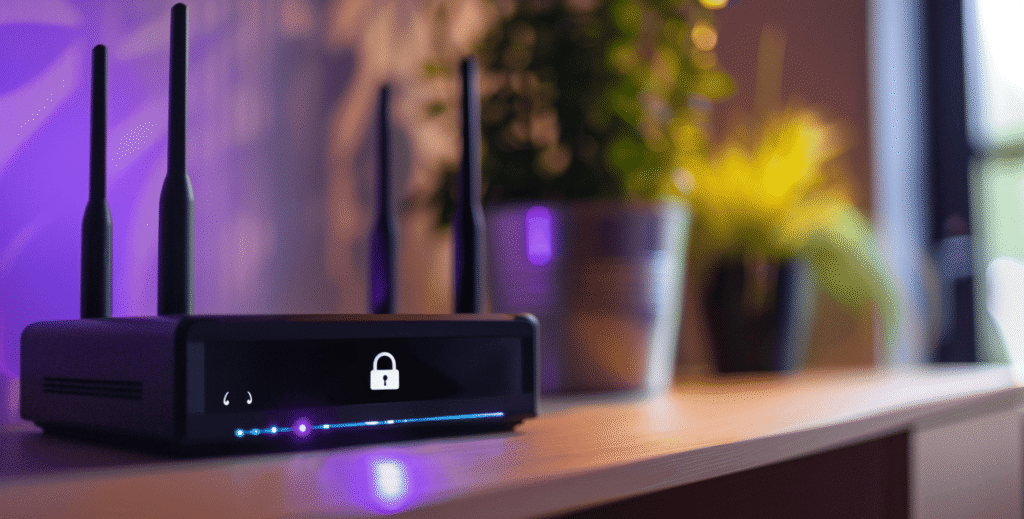
Step 2: Update Your WiFi Password (1 Minute)
While you’re in the router settings, find the WiFi or Wireless section. You’ll see your network name (SSID) and password listed there.
Change the password to something different from your router admin password. Make it long, at least 12 characters. The longer, the better. “MyC0ffeeT@ste$Better!n2025” is infinitely better than “coffee2025.”
If you’re worried about typing this monster password into every device, don’t be. You only do it once per device, and most phones and laptops remember it forever.
Step 3: Rename Your Network (30 Seconds)
See that network name? If it says something like “NETGEAR-5G” or “TP-Link_2.4GHz,” change it. Default names tell attackers exactly what router you have, making their job easier.
Pick something generic but memorable. “The Curious Lab WiFi” works. “FBI Surveillance Van #4” is funny but might alarm your neighbors. Avoid putting your address or last name in the network name, you’re not trying to advertise personal information.
Step 4: Enable WPA3 Encryption (1 Minute)
In your router’s wireless settings, you’ll see options for security type or encryption. Here’s the hierarchy:
- WPA3: The newest standard, available on most routers from 2020 onward.
- WPA2: Still solid, use this if WPA3 isn’t available.
- WPA: Old and vulnerable, avoid.
- WEP: Ancient and broken, never use this.
- Open/None: Absolutely not.
Select WPA3 if your router supports it. If not, WPA2 is fine. As of 2025, WPA3 has become standard on newer routers, offering better protection against brute-force attacks and more secure connections even on public networks.
Some routers offer “WPA2/WPA3 Mixed Mode”, this is perfect if you have older devices that can’t handle WPA3 yet.
Step 5: Disable WPS (1 Minute)
WiFi Protected Setup (WPS) sounds convenient, press a button on your router, and your device connects automatically. The problem? It’s got a massive security flaw that’s been known for years.
Hackers can crack WPS PINs in hours, sometimes minutes. It’s not worth the convenience.
Find WPS in your router settings (might be under Wireless or Advanced Settings) and turn it off. You might see options like “Push Button” or “PIN”; disable both.
[IMAGE PROMPT 2: Split screen showing an unsecured WiFi network on left with red warning symbols and hackers’ hands on keyboards, versus a secured network on right with green checkmarks and a locked shield, dramatic lighting, cybersecurity concept art style]
Step 6: Hide Your Network Name (Optional, 30 Seconds)
You can make your network invisible by disabling SSID broadcast. This means your Wi-Fi won’t appear in the list of available networks.
Is this necessary? Not really. It’s security through obscurity, and dedicated attackers can still find hidden networks. But it does stop casual snoops and reduces the chance of random attempts to connect.
If you hide your network, remember you’ll need to manually type in the network name when connecting new devices.
Step 7: Enable Your Router’s Firewall (30 Seconds)
Most routers have a built-in firewall that’s enabled by default, but check anyway. Look for “Firewall,” “Security,” or “Advanced Settings.”
Make sure it’s turned on. This adds another layer of protection by monitoring incoming and outgoing traffic.
Step 8: Disable Remote Management (1 Minute)
Some routers let you access your settings from anywhere on the internet. Unless you specifically need this feature (and most people don’t), turn it off.
Remote management is another door attackers can walk through. Find it under Advanced Settings or Administration and disable it.
Step 9: Update Your Router’s Firmware (2 Minutes)
Router manufacturers regularly release firmware updates to fix security holes. Your router might not update automatically.
Check for updates in the Administration or System section of your router settings. If there’s an update available, install it now.
Some newer routers from companies like Eero, Google Nest, or newer ASUS models update automatically. If yours does, make sure that feature is enabled.
Step 10: Create a Guest Network (1 Minute)
Here’s a pro tip: set up a separate guest network for visitors and your smart home devices.
Why? If someone’s phone gets compromised or your smart lightbulb has a vulnerability, they can’t access your main network where your important stuff lives.
Most modern routers make this dead simple. Look for “Guest Network” in your wireless settings, enable it, give it a different password, and make sure “Allow guests to access local network” is disabled.
Put all your IoT devices, smart speakers, cameras, and thermostats on this network. Give the password to visitors instead of your main network credentials.
Beyond the Basics: Extras If You’ve Got Time
If you knocked out those ten steps and you’re feeling ambitious, here are a few more things worth doing:
Change your DNS settings. Use Cloudflare (1.1.1.1) or Google (8.8.8.8) instead of your ISP’s DNS. It’s faster and adds privacy.
Disable UPnP if you don’t game or stream. Universal Plug and Play makes connecting devices easier, but it can create security vulnerabilities.
Set up MAC address filtering. This lets you create a whitelist of devices that can connect to your network. It’s tedious to maintain, but it adds another layer of security.
Check connected devices regularly. Most router admin panels show what’s connected to your network. If you see something unfamiliar, investigate.
The Reality Check
Look, no security is perfect. A determined attacker with enough time and resources can probably get into anything. But that’s not who we’re protecting against.
We’re protecting against opportunistic attackers, the ones who scan neighborhoods looking for easy targets. They’re not going to waste time on your network when your neighbor’s router still has “admin/admin” as the login.
You just need to be a harder target than the next person. These ten steps do exactly that.
Make It a Habit
Set a reminder on your phone to check your router settings every six months. Update the firmware, change the passwords, and review connected devices. It takes ten minutes twice a year.
Your digital life is worth ten minutes, right?
Now go secure that network. Your future self will thank you when you’re not dealing with identity theft or explaining to your boss how confidential files leaked from your home office.
Stay curious, stay secure.
Let’s Talk About It
I’d love to hear from you. Did you find any surprises when you logged into your router? Maybe you discovered devices connected that you didn’t recognize, or perhaps your router has been sitting with default settings since the day your ISP installed it (no judgment, we’ve all been there).
Drop a comment below and let me know:
- Which step gave you the most trouble?
- Did you discover anything when checking your network?
- What’s your router situation like? Brand new with all the bells and whistles, or a dinosaur from 2015 that’s held together with hope and duct tape?
- Any security tips I missed that you swear by?
If you hit a roadblock or something in your router interface looks different from what I described, describe what you’re seeing, and I’ll do my best to point you in the right direction. Sometimes router manufacturers bury these settings in weird places, and we can figure it out together.
And hey, if you’re feeling proud after securing your network, share your win in the comments. There’s something satisfying about knowing you just locked down your digital fortress in less time than it takes to watch a YouTube video.
For those of you who prefer privacy and don’t want to comment publicly, you can always reach out through our contact page. Either way, I’m here to help.
If this guide helped you out, do me a favor and share it with someone who needs it. You probably know at least one person whose WiFi password is still “12345678” or their street address. Be a good friend, send them this article.
Let’s build a more secure internet, one home network at a time.
Subscribe to The Curious Lab for more practical tech guides, no-nonsense reviews, and tutorials that actually make sense. We’re just getting started.