
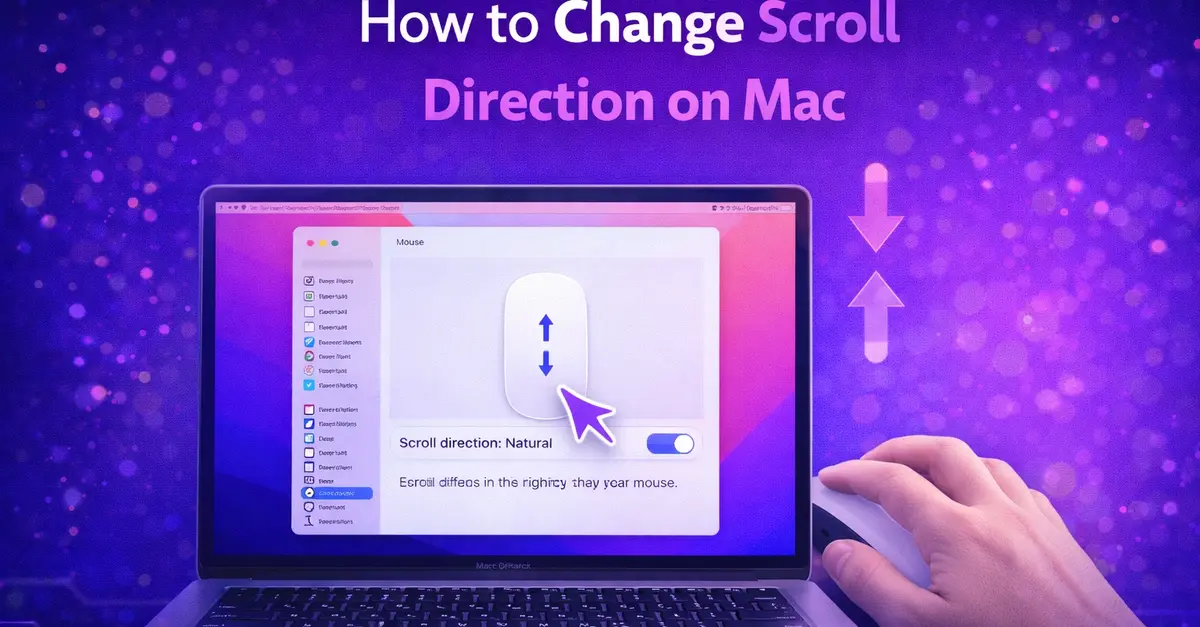
Changing the scroll direction on a Mac feels confusing at first, but the fix takes about ten seconds once you know where to look.
To change scroll direction on Mac, go to System Settings > Trackpad > Scroll & Zoom and toggle Natural Scrolling off. For a mouse, go to System Settings > Mouse and toggle Natural Scrolling off. Both settings are separate but linked; changing one automatically updates the other.
In this guide, you will learn how to reverse scroll on Mac for your trackpad, mouse, and Bluetooth devices, how to set them independently, and how to fix common scroll direction issues on macOS Sequoia.
Natural Scrolling vs Traditional Scrolling – What Is the Difference?
Before changing anything, it helps to understand what these two modes mean.
Natural Scrolling (macOS default): Content moves in the same direction as your fingers. Swipe up → page moves up. This matches how touchscreens work on iPhones and iPads. Apple made this the default in 2011 to create consistency across all devices.
Traditional Scrolling (Windows-style): Content moves in the opposite direction of your fingers. Swipe up → page moves down, like moving a physical scroll bar. Most Windows users switching to Mac find natural scrolling feels backward.
Neither is wrong; it is just a matter of what you are used to. The good news is Mac makes it easy to switch.
How to Change Scroll Direction on Mac Trackpad
This works on MacBook Air, MacBook Pro, Mac mini with an external trackpad, and any Mac running macOS Ventura, Sonoma, or Sequoia.
Steps:
- Click the Apple menu in the top-left corner
- Select System Settings
- Click Trackpad in the left sidebar
- Click the Scroll & Zoom tab
- Toggle Natural Scrolling off
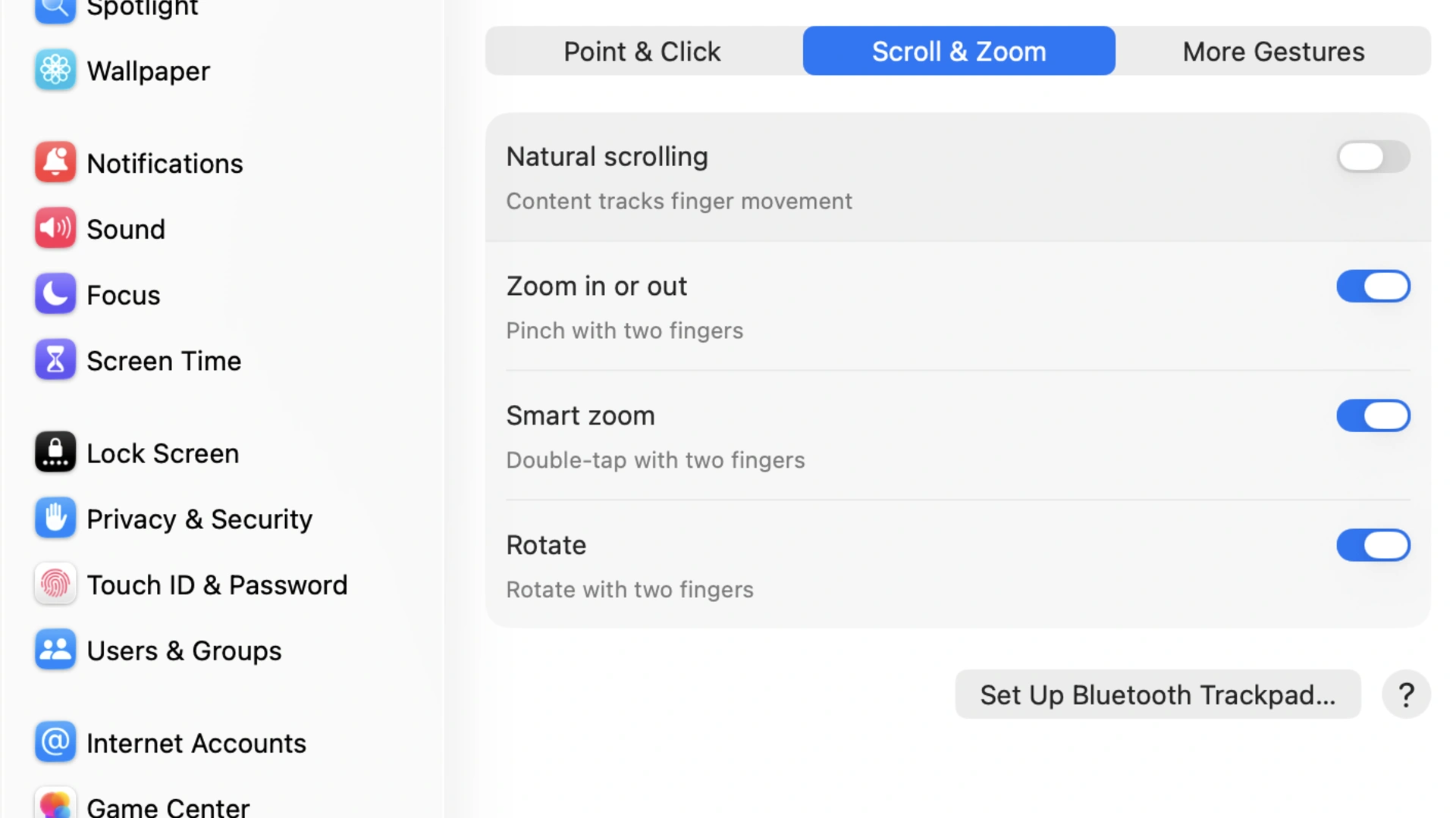
Your scroll direction reverses immediately. No restart needed.
On older macOS (Monterey and earlier): Go to System Preferences > Trackpad > Scroll & Zoom and uncheck Scroll direction: Natural.
How to Change Scroll Direction on a Mac Mouse
This applies to Magic Mouse, standard USB mice, and Bluetooth mice connected to any Mac model.
Steps:
- Click the Apple menu
- Select System Settings
- Click the mouse in the left sidebar
- Toggle Natural Scrolling off
Done. Your mouse scroll direction reverses instantly.
Important note: On Macs, the trackpad and mouse scroll directions are linked. If you change one, the other changes too. This is by design in macOS. There is no native way to set them independently. We cover the workaround for this below.
How to Change Scroll Direction on Mac Sequoia
macOS Sequoia follows the same steps as above. The setting path has not changed:
Trackpad: System Settings > Trackpad > Scroll & Zoom > Natural Scrolling toggle
Mouse: System Settings > Mouse > Natural Scrolling toggle
If you recently upgraded to Sequoia and your scroll direction changed, Apple may have reset your preferences during the update. Simply follow the steps above to restore your preferred direction.
Just like how a system update on Windows might reset your file extension settings, a macOS upgrade can sometimes reset display and input preferences too.
How to Change Scroll Direction on a Mac Bluetooth Mouse Independently
This is the most common advanced request: keeping natural scrolling on the trackpad while using traditional scrolling on a Bluetooth or USB mouse. macOS does not support this natively. The toggle is shared.
The solution is a free app called Scroll Reverser.
How to use Scroll Reverser:
- Download Scroll Reverser from pilotmoon.com. It is free and safe
- Open the app. It runs in your menu bar
- Click the Scroll Reverser icon in the menu bar
- Check Enable Scroll Reverser
- Under Scrolling Devices, enable Reverse Mouse
- Make sure Reverse Trackpad is unchecked
Now your mouse scrolls in the traditional direction while your trackpad keeps natural scrolling. This is the most popular setup for Mac users who switch between both input devices.
Recommended System Settings when using Scroll Reverser:
- Keep Natural Scrolling ON in System Settings
- Set the Scroll Reverser to reverse only the mouse
This combination gives you the best of both worlds. Natural trackpad gestures and traditional mouse scrolling.
Mac Mouse Scroll Reverse: Why Does It Happen After Connecting a New Mouse?
If your mouse suddenly scrolls in the opposite direction after connecting a new device, here is why:
- A new mouse connection can sometimes refresh the scroll direction setting
- If someone else used your Mac and changed the setting, it affects both devices
- A macOS update may have reset the Natural Scrolling preference to default (on)
Quick fix: Go to System Settings > Mouse > Natural Scrolling, then toggle it to your preferred setting. Check your Instagram settings reset in the same way after app updates. Small toggles are easy to miss.
How to Change Mouse Scroll Settings on Mac – Scroll Speed
While you are in scroll settings, you can also adjust how fast the page moves when you scroll.
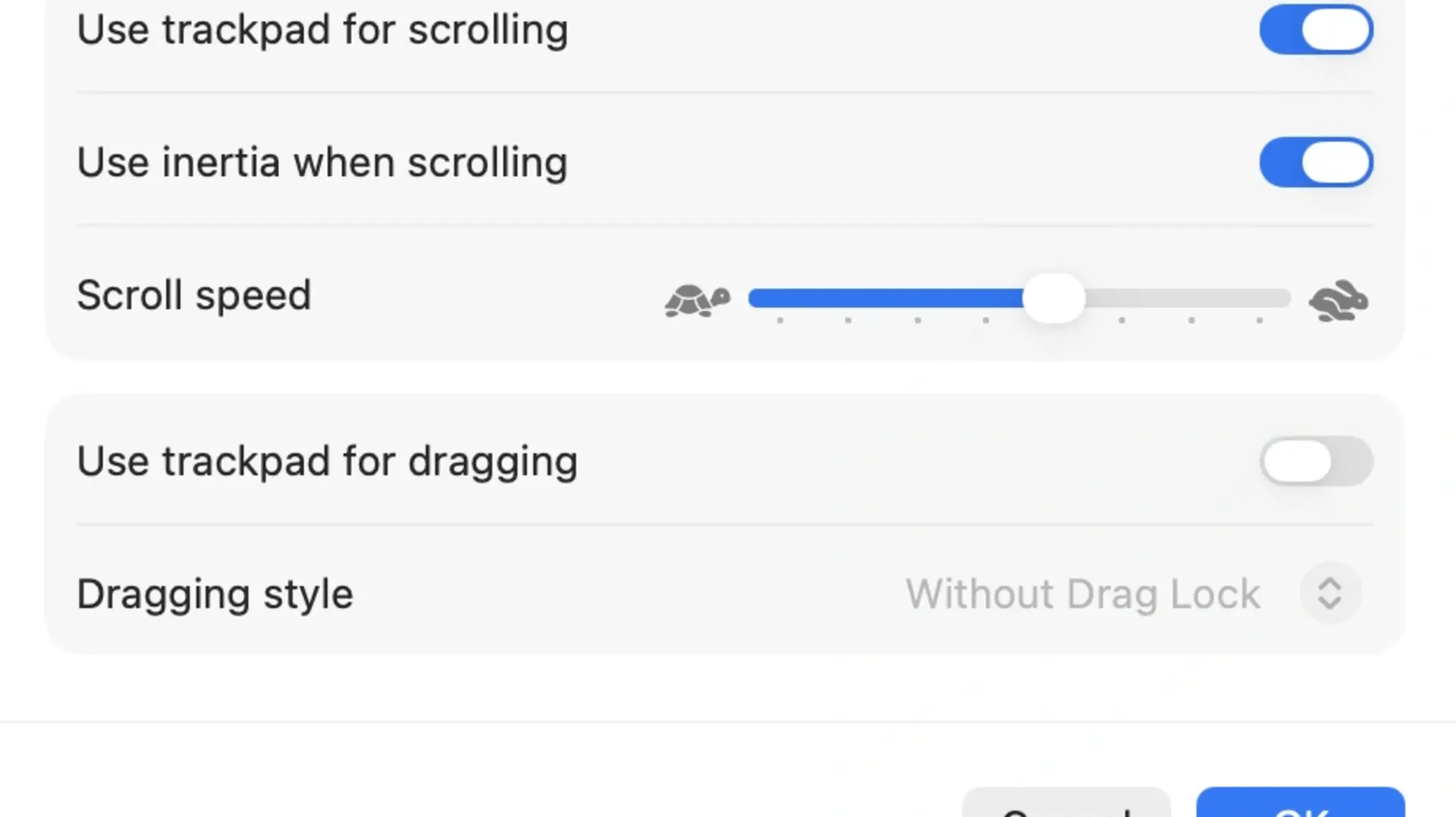
To change scroll speed on a Mac trackpad:
- Go to System Settings > Accessibility
- Click Pointer Control
- Click Trackpad Options
- Adjust the Scrolling Speed slider
To change the scroll speed for a mouse:
- Go to System Settings > Accessibility
- Click Pointer Control
- Click Mouse Options
- Adjust the Scrolling Speed slider
Drag right for faster, left for slower. You can test changes in real time before closing the window.
How to Change Swipe Direction on Mac (Horizontal Scroll)
Horizontal swipe direction, like swiping between full-screen apps or pages in Safari, is different from vertical scroll direction. Gesture settings control it.
To adjust swipe gestures:
- Go to System Settings > Trackpad
- Click More Gestures
- You will see options for Swipe between pages and Swipe between full-screen applications
- Use the dropdown menus to change each gesture behavior
Note: Scroll Reverser does not reverse swipe gestures, only scroll direction. Swipe direction always follows the Natural Scrolling setting in System Settings. Managing these settings is similar in logic to adjusting Google Slides dimensions: there is a main setting and a separate set of finer controls beneath it.
FAQs
Is there a way to change the scroll direction on a Mac?
Yes. Go to System Settings > Trackpad > Scroll & Zoom and toggle off Natural Scrolling to switch to traditional scroll direction. For a mouse, go to System Settings > Mouse and do the same.
How do I switch the direction of my mouse scroll?
Open System Settings, click Mouse in the left sidebar, and toggle Natural Scrolling off. This reverses the scroll direction so the page moves down when you scroll the wheel down, matching the traditional Windows scroll behavior. The change takes effect immediately without a restart.
Why is Apple scrolling backward?
Apple calls its default scroll behavior “Natural Scrolling”. It mimics how you scroll on a touchscreen iPhone or iPad, where content follows your finger direction. Apple introduced this in OS X Lion (2011) to create consistency across all its devices.
How to reverse swipe on Mac?
Swipe gestures (like swiping between full-screen apps or web pages) follow the Natural Scrolling setting in System Settings > Trackpad. Turning Natural Scrolling off also reverses horizontal swipe behavior. For fine-tuned swipe control, go to System Settings > Trackpad > More Gestures to adjust individual swipe actions.
Conclusion
Changing scroll direction on Mac is a two-step process: find the Natural Scrolling toggle in System Settings and flip it off. That covers most users on any Mac, MacBook Air, Mac mini, or desktop with an external mouse or Bluetooth trackpad.
One limitation worth noting: macOS links the scroll direction of the trackpad and mouse. If you need them set differently, natural for the trackpad and traditional for the mouse, download Scroll Reverser. It is free, reliable, and solves the problem in under a minute.
Once your scroll direction feels right, everything else on the Mac becomes more comfortable to use. Small settings, big difference. 🖱️