

Changing your Google Doc background is one of those small tweaks that makes a big difference. Whether you want something easier on the eyes or a document that matches your brand, it takes less than a minute.
To change the background of a Google Doc, go to File > Page Setup > Page Color and pick your color. On mobile, tap the three-dot menu > Page Setup > Page Color. For a background image, use the Insert > Watermark feature instead.
In this guide, you will learn how to change the Google Doc background on desktop, Android, iPhone, and iPad, plus how to add a background image, change the color behind text only, change the table background color, and fix a gray background you didn’t set.
Can You Put a Background on Google Docs?
Yes, you can. Google Docs gives you two main background options:
- Page color changes the full page background to any solid color
- Watermark/background image adds an image behind your text across the full page
What Google Docs does NOT support natively is setting a different background color for individual pages. Every method in this guide applies to the entire document unless noted otherwise.
How to Change the Background of a Google Doc (Desktop)
This is the quickest method on a computer. It works in any browser, like Chrome, Safari, Firefox, or Edge.
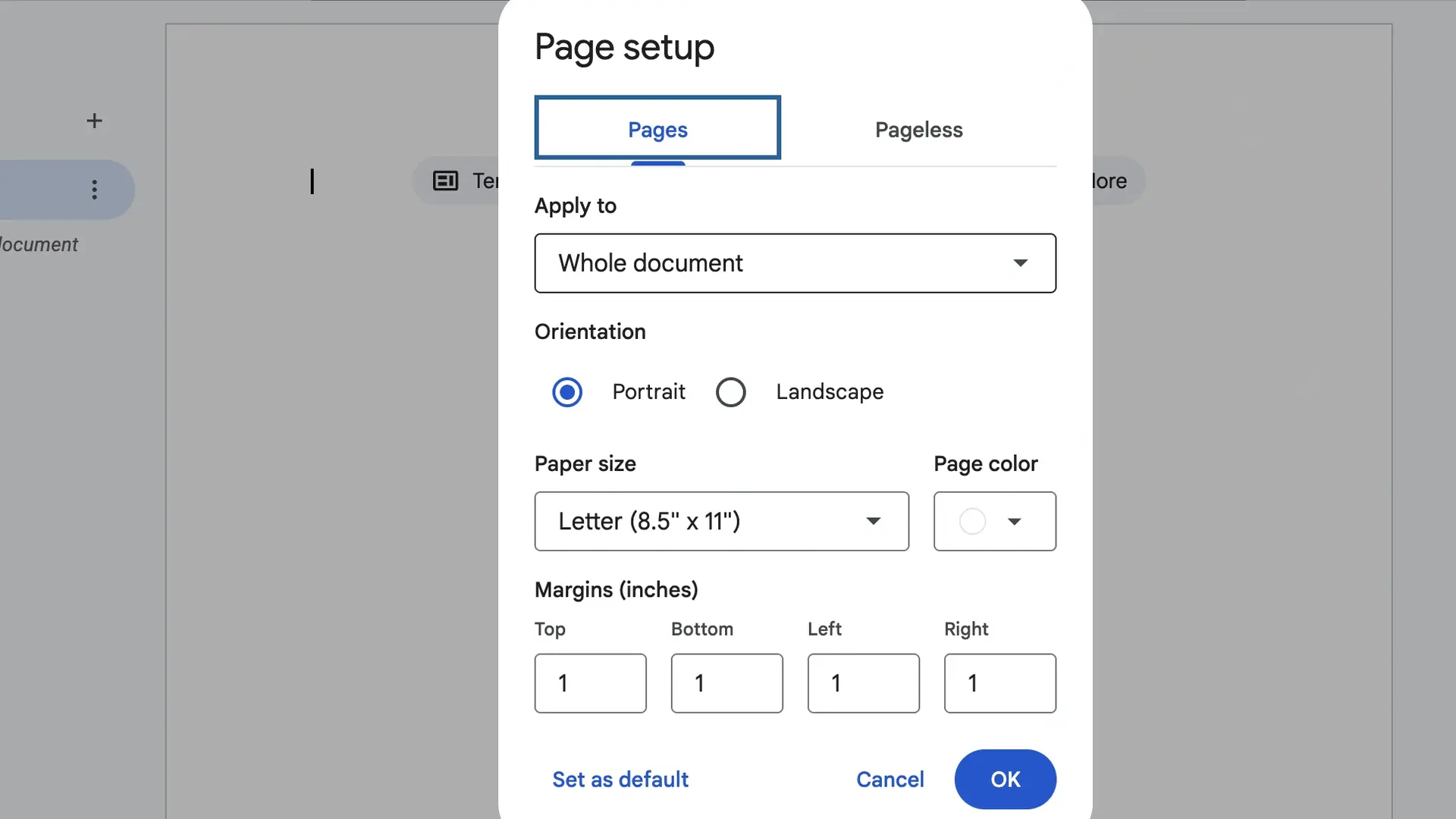
Steps:
- Open your Google Doc
- Click File in the top menu bar
- Select Page Setup from the dropdown
- Click the Page color box in the bottom-left of the pop-up
- Choose a preset color, or click the + to enter a custom HEX code
- Click OK to apply
The background color will change instantly across all pages in your document.
Pro tip: If you want to use this color as your new default for all future docs, click Set as default before hitting OK.
How to Change the Background of a Google Doc to Black
Dark mode documents are popular for nighttime work and presentations. Here is how to set a black background in Google Docs:
- Go to File > Page Setup
- Click the Page color box
- Click the + icon to add a custom color
- Enter HEX code: #000000 for pure black
- Click OK
After changing the background to black, change your text color to white so it stays readable:
- Select all text with Ctrl + A (or Cmd + A on Mac)
- Click the Text color (A) icon in the toolbar
- Choose White or enter HEX #FFFFFF
This creates a clean, high-contrast dark mode document.
How to Change the Background of a Google Doc on Mobile
The mobile app works slightly differently depending on your device. Here are the steps for Android and iPhone.
How to Change Background Color in Google Docs on Android
- Open the Google Docs app on your Android phone
- Open the document you want to edit
- Tap the pencil icon at the bottom-right to enter edit mode
- Tap the three-dot menu (⋮) in the top-right corner
- Select Page setup
- Tap Page color
- Choose from 11 preset colors and pick a shade
- Tap the back arrow to save and return to your document
Note: The Android app does not support custom HEX color codes. You can only choose from 11 preset colors.
How to Change the Background of a Google Doc on iPhone
The steps on iPhone are nearly identical to Android.
- Open the Google Docs app on your iPhone
- Open your document
- Tap the three-dot menu (⋮) in the top-right corner
- Tap Page setup
- Tap Page color
- Choose your preferred color and shade
- Tap the back arrow to apply
Tip for iPhone and iPad users: If you need more color control (like HEX codes or a full color palette), open the document in Safari browser on your device instead of the app. Safari gives you the full desktop version of Google Docs with all options available.
How to Change the Background on Google Docs on iPad
The Google Docs app on iPad follows the same steps as the iPhone. However, for more control:
- Open Safari on your iPad
- Go to docs.google.com
- Tap the AA icon in the Safari address bar
- Select Request Desktop Website
- Now follow the desktop steps: File > Page Setup > Page Color
This gives you full HEX code support and the complete color palette — something the mobile app alone doesn’t offer.
How to Add a Background Image in Google Docs
Google Docs does not support a true full-page background image the way PowerPoint or Canva does. However, you can use the Watermark feature to place an image behind your text.
Steps to insert a background image in Google Docs:
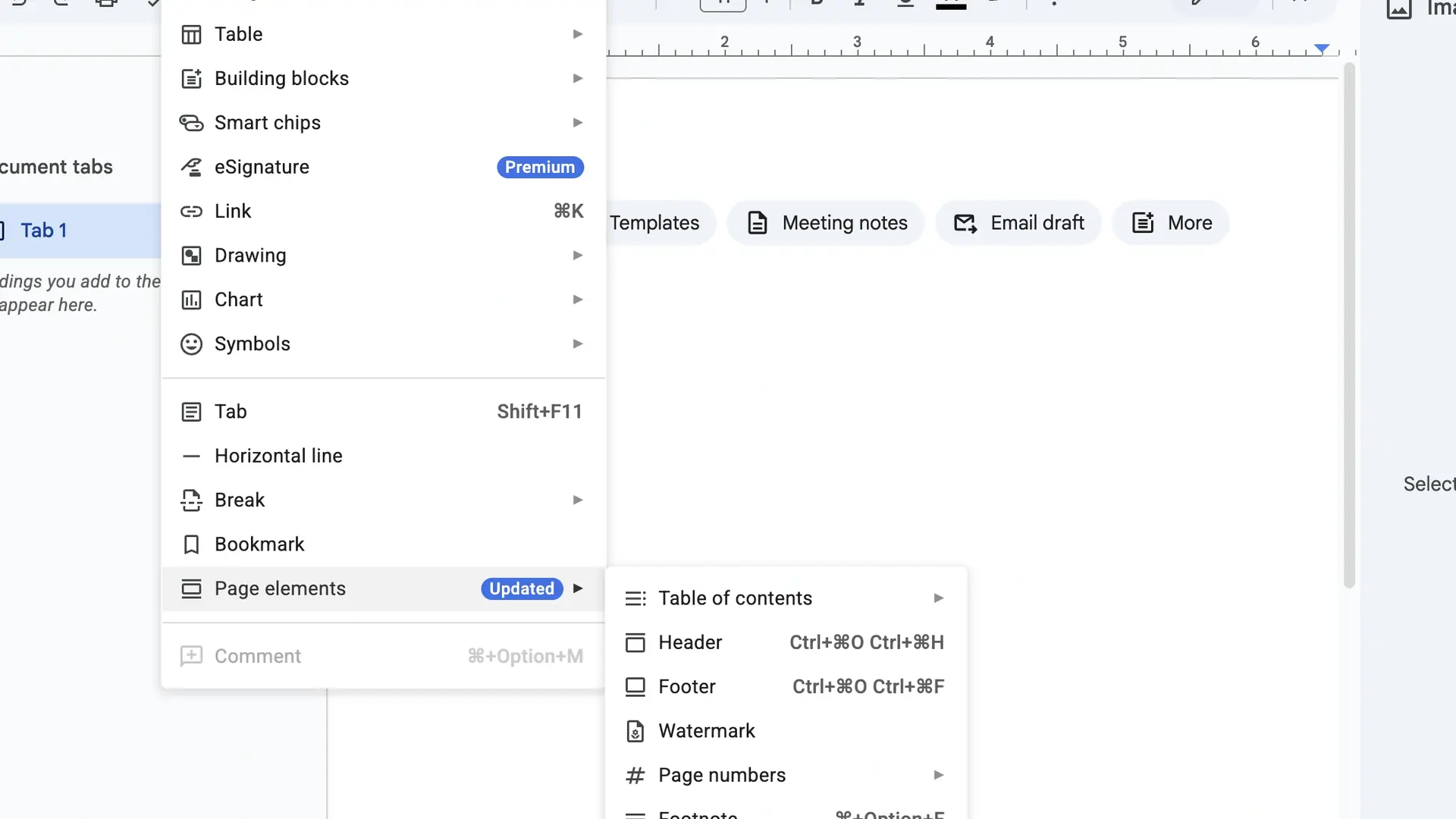
- Click Insert in the top menu
- Select Page Elements >Watermark
- In the sidebar that opens, click Select Image
- Upload an image from your computer or Google Drive
- Adjust the opacity/fade so the text stays readable
- Click Done
The image will appear as a full-page background across your document. This is the closest Google Docs gets to a Full-Page background image effect.
Limitations to know:
- The image appears faded/watermarked by default
- You can’t reposition it freely
- It applies to all pages, not just one
How to Change Google Docs Background Color Behind Text Only
If you want color behind specific text, not the full page, use the Highlight color tool. This adds a colored background directly behind the words you select.
Steps:
- Select the text you want to highlight
- Click the Highlight color icon in the toolbar (it looks like a marker)
- Choose your color
This is different from changing the page background. It adds a Google Docs background color behind text only, great for callouts, important notes, or visual emphasis.
Want a colored box behind a paragraph? Use a single-cell table instead:
- Click Insert > Table and insert a 1×1 table
- Type your text inside
- Right-click the table and select Table properties
- Change the cell background color to your preferred color
How to Get a Gray Background Out of Google Docs
Seeing a gray background in your Google Doc that you didn’t set? Here are the most common causes and fixes:
Cause 1: Dark mode is turned on
- On mobile, tap the three-dot menu > Settings and switch appearance from Dark to Light
- On desktop, check your browser or system dark mode settings
Cause 2: The page color was changed previously
- Go to File > Page Setup > Page Color
- Select White or click Reset to default
- Click OK
Cause 3: Text has a gray highlight applied
- Select the affected text with Ctrl + A
- Click the Highlight color tool and select None
Cause 4: You are in Pageless mode
- Go to File > Page Setup
- Click the Pages tab (not Pageless)
- Set page color to White and click OK
How to Change the Background of a Google Doc — Quick Summary
| Method | Where to Find It | Works On |
| Page color (solid) | File > Page Setup > Page Color | Desktop, Mobile, iPad |
| Background image | Insert > Watermark | Desktop only |
| Color behind text | Highlight color tool in the toolbar | Desktop & Mobile |
| Table cell color | Table properties > Cell background | Desktop & Mobile |
| Black background | Page color + HEX #000000 | Desktop & Mobile |
FAQs
How to make Google Docs have a black background?
Go to File > Page Setup > Page Color. Click the + to add a custom color and enter the HEX code #000000. Click OK. Then select all your text and change the text color to white so it stays visible against the dark background.
How do I put a background behind text in Google Docs?
Select the text you want to highlight, then click the Highlight color icon in the toolbar and pick a color. This places a colored background directly behind your selected text. For a full-color box, insert a 1×1 table and set the cell background color in Table Properties.
How do I change the background of my doc?
On the desktop, go to File > Page Setup > Page Color and choose a color. On mobile, tap the three-dot menu > Page Setup > Page Color. The change applies to all pages in the document.
How do I get a gray background out of Google Docs?
Go to File > Page Setup > Page Color and set it back to White. If the gray is from highlighted text, select all text with Ctrl + A, click Highlight color, and choose None. If you are in dark mode on mobile, go to Settings and switch to Light theme.
Can I change the background color of just one page in Google Docs?
No, Google Docs does not support individual page background colors natively. The page color change applies to the whole document. A workaround is to insert a full-width, full-height colored table on the page you want to stand out.
Does changing the background color in Google Docs affect printing?
Yes, it does. When you print a document with a colored background, the color will print too, which uses more ink. If you only want the color on screen, consider using your browser or system’s dark mode instead of changing the actual page color.
How do I add a background image to Google Docs on mobile?
The Watermark/background image feature is currently only available on the desktop version of Google Docs. On mobile, you will need to open your document in a desktop browser to access Insert > Watermark and add a background image.
Why did my Google Docs background change on its own?
This usually happens because dark mode was automatically enabled on your device or browser. Go to File > Page Setup > Page Color and reset it to White. On mobile, go to Settings in the app and switch to Light theme.
Conclusion
Changing the background of a Google Doc is simple once you know where to look. On a desktop, everything lives under File > Page Setup. On mobile, it is just a few taps in the three-dot menu. And for images, the Watermark feature has you covered.
Whether you want a soft pastel tone to reduce eye strain, a bold black background for a sleek look, or just a colored box behind specific text, Google Docs gives you the tools to do it.
One thing to remember: background color changes apply to the entire document, not just individual pages. For single-page color changes, use the table workaround covered above.
Now you know every method, desktop, Android, iPhone, and iPad. Go ahead and make your documents look exactly the way you want.