
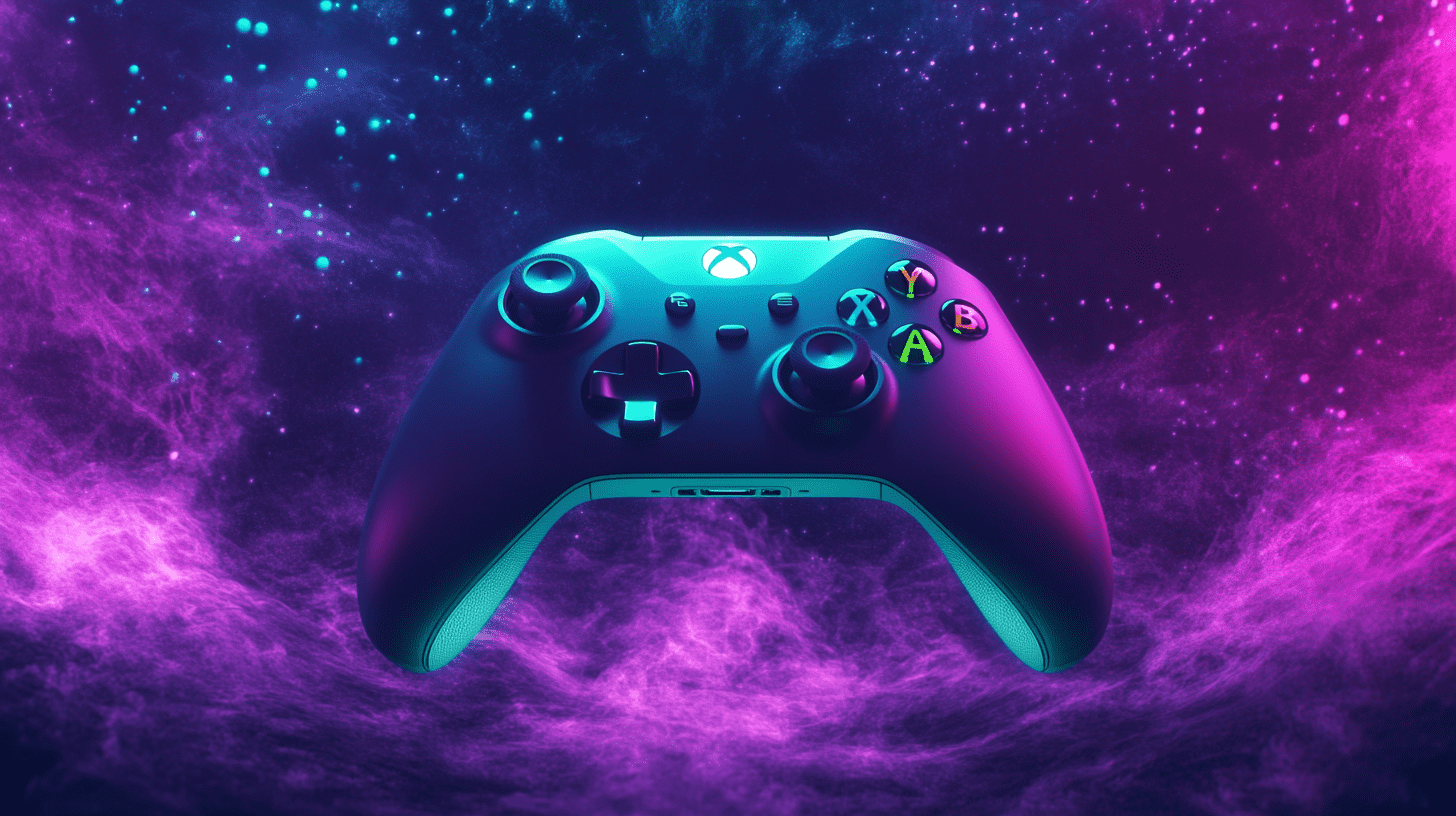
Connecting an Xbox controller to a PC is the best way to experience your games, especially for racing games and action games that feel more natural with a controller.
Microsoft designed Xbox controllers to work smoothly with Windows PCs, and there are several easy ways to connect them.
In this blog, we’ll see all the main methods step by step and help you connect your Xbox to your PC.
Why Use an Xbox Controller on PC?
Many PC gamers like Xbox controllers because they are comfortable to use, last a long time, and work with most games.
Most newer PC games automatically detect Xbox controllers and show the familiar button prompts (A, B, X, Y), which makes playing easier.
No matter if you use Steam, Xbox Game Pass, or another platform, an Xbox controller can make your gaming feel more like playing on a console and more comfortable.
What You’ll Need Before You Start
Before connecting your controller, make sure you have:
- A Windows 10 or Windows 11 PC
- An Xbox controller (Xbox One or Xbox Series X|S controller works best)
- A USB cable, Bluetooth, or an Xbox Wireless Adapter (depending on the method)
Once you have these ready, choose the connection method that works best for you.
Method 1: Connect Using a USB Cable (Easiest Method)
This is the simplest and most reliable way to connect an Xbox controller to a PC.
Steps:
- Turn on your PC.
- Plug the USB cable into your Xbox controller.
- Plug the other end of the cable into a USB port on your PC.
- Wait a few seconds while Windows automatically installs the required drivers.
That’s it! Your controller should be ready for immediate use. You can test it by opening a game or by searching for “Game Controllers” in the Windows search bar and checking the input.
Pros:
- No batteries required
- Very stable connection
- No setup or pairing needed.
Cons:
- Limited movement due to the cable
Method 2: Connect Using Bluetooth (Wireless and Convenient)
If your PC has Bluetooth, you can connect your Xbox controller wirelessly.
Steps:
- Turn on Bluetooth on your PC:
- Go to Settings > Bluetooth & devices.
- Turn Bluetooth on
- Turn on your Xbox controller by pressing the Xbox button.
- Hold the Pair button on the controller (near the LB button) until the Xbox logo starts flashing.
- On your PC, click Add device > Bluetooth.
- Select the Xbox Wireless Controller from the list.
Once connected, the Xbox logo will stay solid, indicating a successful connection.
Pros:
- Wireless freedom
- No extra accessories needed
Cons:
- Slight input lag compared to USB
- Bluetooth connection can be less stable on older PCs.
Method 3: Use the Xbox Wireless Adapter (Best Wireless Performance)
For the most reliable wireless experience, Microsoft offers an Xbox Wireless USB Adapter.
Steps:
- Plug the Xbox Wireless Adapter into a USB port on your PC.
- Turn on your Xbox controller.
- Press the Pair button on the adapter until it starts blinking.
- Press and hold the Pair button on the controller.
- Wait until both devices connect.
This method is especially useful if you want to connect multiple controllers or use a headset connected to the controller.
Pros:
- Strong, stable wireless connection
- Supports multiple controllers
- Lower latency than Bluetooth
Cons:
- Requires buying the adapter
How to Check If Your Controller Is Working
To make sure everything is set up correctly:
- Press Windows + R, type joy.cpl, and press Enter.
- Select Xbox Wireless Controller.
- Click Properties.
- Press buttons and move sticks to see if they respond on screen.
If everything responds correctly, your controller is ready for gaming.
Using Xbox Controllers with Steam and Other Games
Most PC games support Xbox controllers automatically. On Steam:
- Open Steam.
- Go to Settings > Controller > General Controller Settings.
- Enable Xbox Configuration Support if needed.
For non-Steam games, the controller usually works without extra setup. If a game doesn’t recognize it, try launching the game after connecting the controller.
Common Problems and Fixes
Controller not connecting via Bluetooth.
- Make sure your controller supports Bluetooth (older Xbox One controllers may not).
- Update Windows and Bluetooth drivers.
- Remove the controller from Bluetooth devices and pair it again.
Buttons are not working correctly.
- Update the controller firmware using the Xbox Accessories app from the Microsoft Store.
- Restart your PC and reconnect the controller.
Input lag
- Switch to a USB cable or Xbox Wireless Adapter for better performance.
Final Thoughts
Connecting an Xbox controller to your PC is quick and easy. You can choose a wired connection for stability or go wireless for more comfort, depending on what you like best.
Xbox controllers are a great choice for PC gaming because they are easy to set up and work with many games. Once you’re connected, just start your favorite game and enjoy a smoother, more immersive experience. 🎮